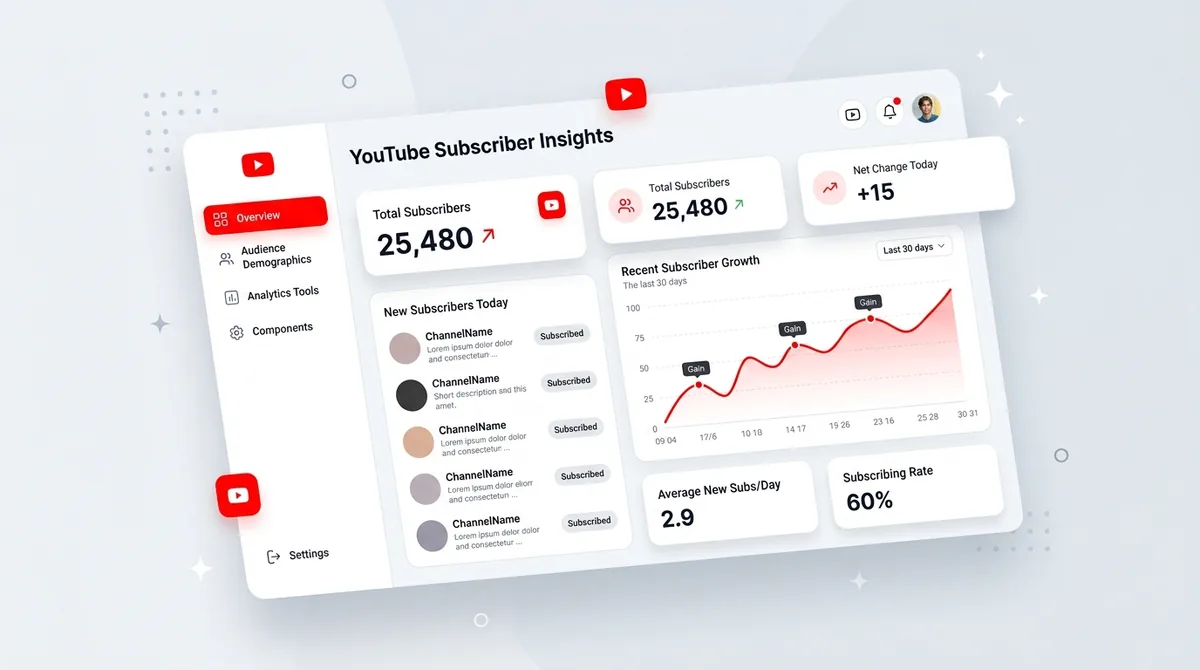
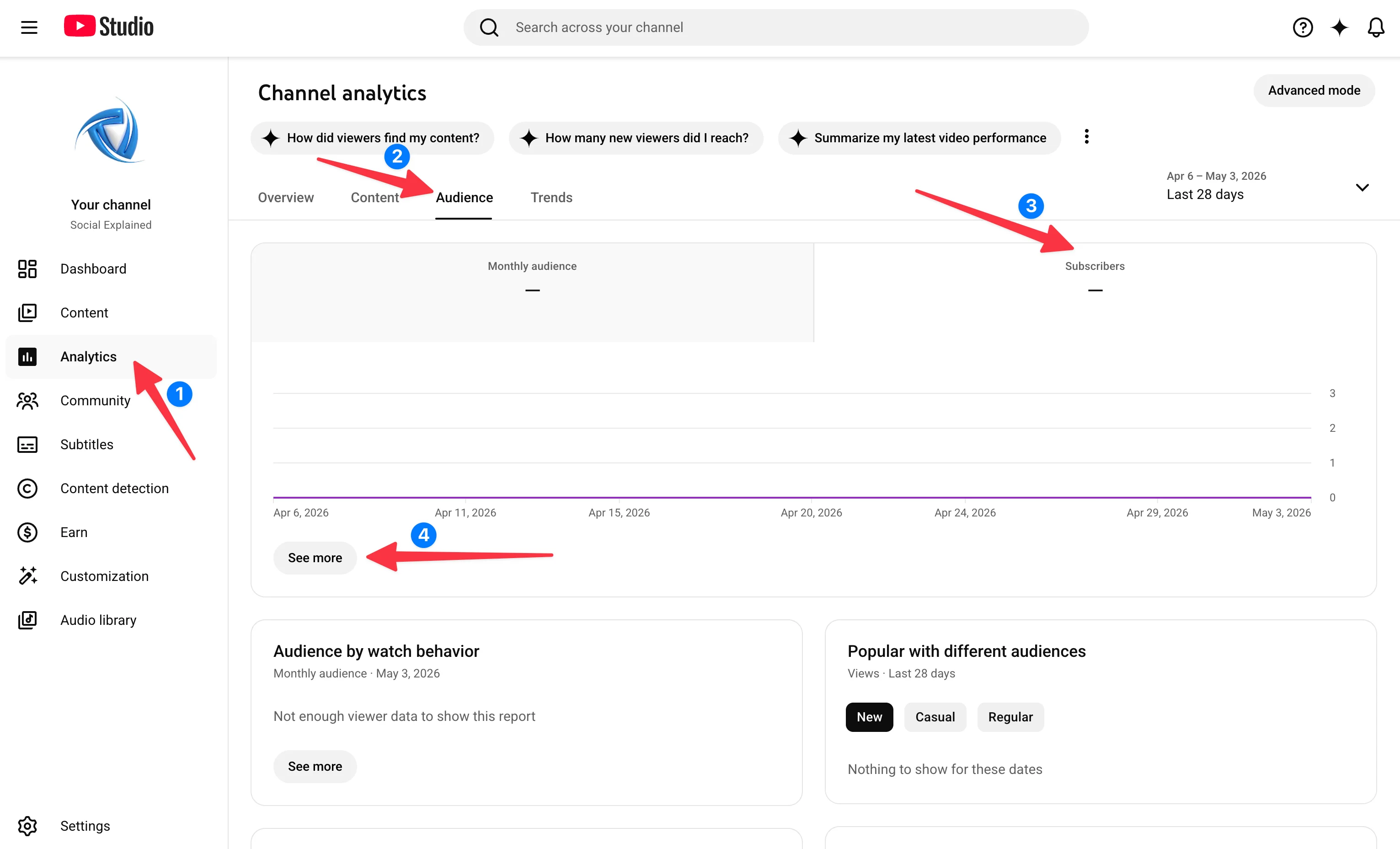
To answer “how can I see my subscribers on YouTube” in 2026: go to studio.youtube.com → in the left sidebar click Analytics → then Audience → in the Audience overview, find the Subscribers card and hit See more. That’s your full list of public subscribers.
Jump to a section:
- What is “how can I see my subscribers on YouTube”?
- The 30-second answer (and why most articles get the rest wrong)
- What is the YouTube Subscribers tab?
- Why YouTube hides some subscriber data (and why most articles are wrong about this)
- How can I see my subscribers on YouTube Studio (desktop)
- How can I see my subscribers on the YouTube Studio mobile app?
- Seeing subscribers from a specific video (the overlooked feature)
- Why your subscriber count fluctuates (and why that’s normal)
- Common mistakes (why most people still get bad subscriber data)
- Can other people see your YouTube subscribers?
- From subscriber visibility to subscriber growth
- Your weekly 5-minute subscriber review (the framework)
- Frequently asked questions
- The visibility advantage most creators leave on the table
Most articles on Google still show screenshots from the old Studio layout from 2019–2023. Buttons that don’t exist anymore. Tabs that got moved. In this updated guide, I’ll walk you through the current desktop and mobile flows, the per-video subscriber breakdown almost nobody checks, and the privacy rules that confuse most creators.
What is “how can I see my subscribers on YouTube”?
“How can I see my subscribers on YouTube” usually means two things: how to open your Subscribers tab in YouTube Studio, and how to understand why the list you see doesn’t match your public subscriber count. You do this through YouTube Studio on desktop or mobile, which shows every public subscriber and lets you sort and filter them.
The 30-second answer (and why most articles get the rest wrong)
Let’s get straight to it.
To see your YouTube subscribers in 2026:
Open studio.youtube.com and sign in.
Click Analytics in the left sidebar.
In the Audience overview under Audience, find the Subscribers card → click See more.
That’s the current path under the 2024–2026 YouTube Studio redesign. The old “Channel → Recent subscribers” layout you see in older tutorials? Gone.
This guide is based on the current Studio UI, not screenshots from 2019. I’ll show you how to see your subscribers on desktop and on the Studio app, how to see which specific videos brought those subscribers in, and what’s actually happening when your list looks way shorter than your total count.
What is the YouTube Subscribers tab?
The YouTube Subscribers tab in YouTube Studio shows every public subscriber to your channel: their channel name, subscribe date, and how many subscribers they have. You can sort by date, alphabetical order, or their own subscriber count, and filter by date range. Subscribers who chose private mode still count toward your total but don’t appear here.
Why YouTube hides some subscriber data (and why most articles are wrong about this)
Most older posts say something like, “By default, YouTube hides who you’re subscribed to, so creators can’t see you.” That used to be true. It isn’t anymore.
Here’s the actual history:
Pre-2018: Subscriptions were private by default. You had to manually turn them public.
Post-2018: YouTube flipped it. Subscription visibility became public by default, with a privacy toggle if you wanted to hide them.
Today, the real rule is:
Your subscriber list is public by default.
Any individual user can switch on Settings → Privacy → “Keep all my subscriptions private” in their YouTube account.
When they do, they still count toward your total subscriber number, but they vanish from your visible Subscribers tab.
That’s why your channel might say “10,200 subscribers” publicly, but your Subscribers tab only lists, say, 7,900 accounts. Nothing is broken. A chunk of your audience just opted out of being listed.
Why did YouTube change this? Simple creator politics.
Creators wanted more transparency: who’s following me, when did they join, which videos moved the needle. At the same time, viewers wanted control: “I don’t want my subscriptions to be a public list of my interests.” So YouTube landed in the middle — public by default for creator data, private option for individual users. If you want the official wording, YouTube explains this privacy setting here: https://support.google.com/youtube/answer/4145115.
So if you’re stressing about “missing” subscribers, stop. They’re usually just private, spam-filtered, or tied to deleted accounts.
How can I see my subscribers on YouTube Studio (desktop)
This is the core path. If you remember nothing else from this article, remember this section.
Open YouTube Studio and find the Subscribers tab
Here’s the current desktop flow to see your subscribers in 2026:
Go to Studio
Open studio.youtube.com on desktop and sign in with the Google account that owns the channel.Go to Analytics
In the left sidebar, click Analytics. This used to be buried elsewhere pre-2024, which is why so many screenshots online look different.Open the Subscribers view
In the Audience overview page, scroll to the Subscribers card. Click See more to open the dedicated Subscribers tab. You can also sometimes access a short “Recent subscribers” snippet from the main Dashboard card, but the full controls live under Audience → Subscribers.
Most creators who ask “how can I see my subscribers on YouTube” just never make it to this page because they’re following outdated click paths.
Once you’re here, this list is your control room. It’s everyone who’s publicly subscribed, plus their subscribe date and their own sub count.
Sort by date subscribed, alphabetical, or their own subscriber count
At the top of the Subscribers table you’ll see sort options. They look basic. They’re not.
Date subscribed (default) – Newest first. This is how you watch growth velocity and see who joined after a launch. If you dropped a big video yesterday and your top 50 rows are “subscribed 16 hours ago,” you know it’s pulling in new people.
Alphabetical – Handy when someone DMs you like, “Hey, I subscribed, did you see it?” Instead of scrolling forever, you just sort A–Z and skim for their channel name.
Their subscriber count – This is the underrated one. Sorting by their sub count pulls up your biggest creator subscribers at the top.
Example: You sort by subscriber count and notice a channel with 82K subs who joined last week. They make similar content. That’s a warm collab lead you wouldn’t have spotted by just watching your public count tick up.
Most creators obsess over “I hit 10K subs!” and never once ask, “Who are these people?” That’s a miss.
Filter by date range (last 7, 28, 90, 365 days, or custom)
Now for the part that turns this from a vanity list into a growth tool: the date-range filter.
In the top-right of the Subscribers tab, you’ll see a filter like: Last 28 days ▼ or Lifetime. Click it and you get options such as:
Last 7 days
Last 28 days
Last 90 days
Last 365 days
Custom range
Why this matters:
Switch to Last 7 days to see everyone who joined this week and get a feel for current momentum.
Switch to Last 28 days to compare “this month vs last month” subscriber quality and collab potential.
Use a custom range around a launch or viral moment (e.g., “from the day I posted that Shorts series until 10 days later”) to see who that push brought in.
Imagine you ran a mini-challenge on your channel in February. Set a custom range for the launch week. Now you can scroll the list and see which of those subscribers are creators, brands, or potential partners. That’s how you turn analytics into relationships.
If you want to pull assets from your videos while you’re in analysis mode — like grabbing your own clips to reuse on Shorts or TikTok — a simple helper is a YouTube Downloader that lets you save your public videos in HD for repurposing.
Ready to save 15+ hours every week?
Join other creators who've automated their social media with SocialCal.
Get started freeHow can I see my subscribers on the YouTube Studio mobile app?
Desktop is nicer for detail work, but let’s be real: you check your stats on your phone in bed.
YouTube totally rearranged the Studio app in 2025, which is why your “Audience” icon might not match what tutorials show.
Here’s how to see your subscribers on the YouTube Studio mobile app now:
Open the YouTube Studio app
Make sure you’re logged into the right channel.Tap the “More” tab
At the bottom navigation bar, tap More. This replaced the old top-bar Audience icon.Tap “Subscribers”
In the More menu, tap Subscribers. This opens the simplified subscribers list.
You get mostly the same tools as desktop: sort by date, alphabetical, or subscriber count, plus date filters for last 7/28/90 days and lifetime. What you don’t get on mobile is export options or as much screen real estate for scanning long lists.
So here’s how I treat it:
Mobile = quick checks, “who just subbed?” moments, ego hits.
Desktop = “Okay, I’m sitting down to actually understand my audience and plan content from this.”
That split keeps you from doom-scrolling your stats between takes and actually pushing new videos out.
Seeing subscribers from a specific video (the overlooked feature)
This is where things get interesting. YouTube doesn’t just track who subscribed. It tracks which videos convinced them.
Most creators never look at this because it’s a few clicks deep, but this one report is how you stop chasing views for the sake of views.
Here’s why it matters:
A video with 100K views and 200 new subs converts at 0.2%.
A video with 10K views and 500 new subs converts at 5%.
The second video is way smaller in reach but way stronger at turning strangers into subscribers. That’s the one you build a series around.
Open the video Analytics from your video list
To see subscribers from a specific video:
Go to Content
In YouTube Studio desktop, click Content in the left sidebar. This opens your full video list.Open that video’s analytics
Click on the video title (or the row, depending on your layout). Don’t click the pencil Edit icon — you want the analytics screen.Switch to the Audience tab
In the video analytics view, you’ll see tabs like Overview, Reach, Engagement, Audience. Click Audience.Scroll to “Sources of subscribers”
Scroll past “Returning vs new viewers” and “Unique viewers” until you hit the Sources of subscribers panel. This shows how many subscribers that specific video brought in.
You’ll usually see a breakdown like:
This video
Other videos
Channel page
Interactive features (end screens, cards)
Pay attention to how many of your total subs came from this one video. When you find videos where that number is way out of proportion to views, you just found a format your ideal audience actually subscribes for.
Cross-reference with the Reach tab for the full picture
The “Sources of subscribers” panel tells you which video converted. The Reach tab tells you how people found it.
In the same video analytics screen, click Reach. Look at the Traffic source types chart. You’ll see things like:
YouTube search
Browse features
Suggested videos
External
Shorts feed
Now connect the dots:
If a high-conversion video is mainly YouTube search, that format is SEO-friendly. You can repeat it with different keywords, similar to how you’d treat ranking blog posts. A quick helper for titles and descriptions is using a YouTube Transcriber to pull your script and mine phrases your audience actually uses.
If a high-conversion video is mostly Suggested videos, you’ve tapped into the recommendation system. That’s good, but harder to control. Treat this like a “bonus hit,” not your entire strategy.
If a video brings a lot of subs from External, that means your off-YouTube traffic (newsletter, X, Instagram) is actually moving people to subscribe.
This is how grown channels operate: they reverse-engineer which topics + formats + traffic sources actually earn subscribers, then they double down.
Why your subscriber count fluctuates (and why that’s normal)
Everyone has that morning where they open Studio, see “−120 subscribers,” and spiral.
Before you assume your content suddenly sucks, understand how YouTube’s counting actually works.
Spam/bot purges
YouTube regularly removes spam accounts and bots. When those accounts get wiped, their subscriptions disappear too. You might see a 1–3% drop overnight during these cleanups. This isn’t about you; it’s housecleaning. They’ve talked about this openly in policy updates: https://support.google.com/youtube/answer/6392782.Channel deletions and suspensions
If a user deletes their account or gets suspended, their sub to your channel is gone. On big channels this happens daily at small scale.Normal churn (people unsubscribing)
This is just part of running a channel. People binge your content for a phase, then move on. Healthy channels lose subs every day; they just gain more than they lose.4-hour delay rule
Your public channel subscriber count is delayed and rounded. YouTube does this to stop real-time scraping and sub-bot scripts. Studio shows you the accurate number; the public page lags a bit and rounds to “12.3K” instead of “12,347.”
So if you see small dips or a frozen public count while Studio still moves, that’s normal. The only time to genuinely worry is if Studio shows a clear downward trend over weeks and your content output hasn’t changed.
Common mistakes (why most people still get bad subscriber data)
Most creators technically know how to open the Subscribers tab. Where they mess up is how they read it.
Confusing the Subscribers tab with the Audience tab
The Audience section in analytics feels like it should be “my subscribers.” It’s not.
Audience analytics = demographics and behavior of all viewers (subscribers + non-subscribers). The Subscribers tab = the actual list of subscriber accounts.
If you look at “Top countries” and assume that’s your subscriber breakdown, you’re probably wrong — a lot of those viewers might be non-subscribed Shorts viewers.
Trusting third-party subscriber trackers for exact counts
Sites like Social Blade are fun for stalking other creators’ growth, but they’re not real-time. They cache data and update on a schedule that can be hours behind.
Use third-party trackers for trend lines and public flexing, not for actual decisions. If you want your real number for a brand deal, always grab it from Studio.
Refreshing rapidly to watch the count change
Everyone does this at some point: you hit a milestone like 9998 subs and start refreshing like a maniac, waiting for 10K.
YouTube rate-limits aggressive refreshes. Your number might appear “stuck” if you hammer F5. On top of that, you’re training your brain to chase micro-changes instead of making better content.
A healthier habit: check once per session. Screenshot your milestones. Go back to scripting your next video.
Forgetting that private subscribers exist
This one causes 90% of “something’s wrong with my account” posts.
Your visible subscriber list will always be smaller than your total Studio count. People who set “Keep all my subscriptions private” still count toward your total but never show in your list.
If you have 10,000 subs and only see 7,500 in the Subscribers tab, that’s not a bug. It just means roughly 25% of your audience likes lurking quietly.
Comparing the public sub count vs Studio exact count
Public channel page: “12.3K subscribers.”
Studio: “12,347 subscribers.”
They don’t match exactly by design. Public numbers are rounded to keep things clean and to avoid people obsessing over tiny changes. For decisions, negotiations, and reporting, always use the Studio number.
Can other people see your YouTube subscribers?
Short answer: yes, by default other people can see the channels you subscribe to and the people who subscribe to you, as long as you haven’t enabled privacy settings.
There are two sides here:
Your subscribers list (people who follow you)
On your channel page, visitors can usually see a “Subscriptions” or similar section, showing channels you feature or are connected with. From the creator side, you see your subscriber list in Studio even if you’ve made it private publicly.Your own subscriptions (who you follow)
That’s what viewers control with “Keep all my subscriptions private” in YouTube account settings. If they toggle this on, they become an invisible subscriber to the channels they follow.
If you want to make your own subscriber list private from the public view:
Open YouTube Studio.
Go to Settings → Channel → Advanced.
Toggle on “Keep all my subscribers private” (wording may vary slightly).
Once that’s on, visitors won’t see your subscriber list on your channel page. You, however, still see the same data inside Studio.
To see another channel’s subscribers (if they’re public), go to their channel and look for their About or Channels / Subscriptions section. If it says “No public subscribers,” that just means they’ve hidden their subscriber visibility — it doesn’t mean their channel is small.
From subscriber visibility to subscriber growth
Knowing how to answer “how can I see my subscribers on YouTube” is the diagnostic side. It tells you who’s coming in, where they came from, and which videos made them click subscribe.
The actual growth, though, comes from everything you publish between those data checks.
Here’s the thing most creators miss: the YouTube algorithm doesn’t just look at how good your last video is. It tracks:
How consistently you upload.
Whether viewers actually finish your videos once they discover you.
Whether subscribers keep coming back week after week.
That’s why some channels with “okay” videos still grow, and some with incredible one-off uploads stay stuck. The algorithm basically rewards channels that act like shows, not random one-time events.
The real issue usually isn’t “I don’t know how to grow.” It’s “I can’t stick to a posting rhythm.” Scheduling is the behavioral fix for that.
On my own channels, growth finally got boringly predictable when I started treating YouTube like a weekly show: script on Sunday, record Tuesday, edit Wednesday, schedule Thursday. A YouTube-native scheduler like the YouTube Scheduler in SocialCal helps you batch a month of uploads and Shorts in one sitting so you’re not depending on willpower every week.
Let Studio handle the analytics. Let your scheduler handle the consistency.
Your weekly 5-minute subscriber review (the framework)
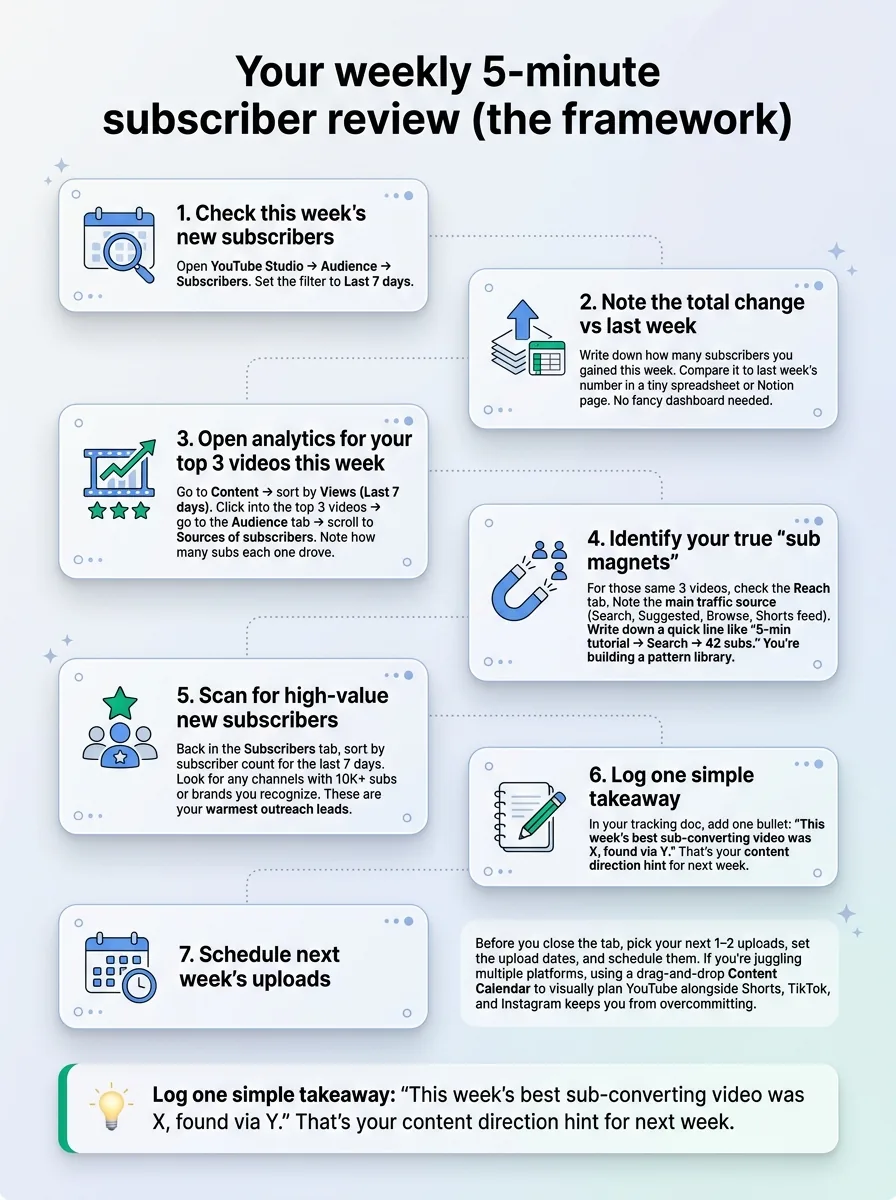
Here’s a simple ritual you can screenshot and run every week. It keeps you honest about what’s actually working, instead of just hoping the count keeps going up.
Check this week’s new subscribers
Open YouTube Studio → Audience → Subscribers. Set the filter to Last 7 days.Note the total change vs last week
Write down how many subscribers you gained this week. Compare it to last week’s number in a tiny spreadsheet or Notion page. No fancy dashboard needed.Open analytics for your top 3 videos this week
Go to Content → sort by Views (Last 7 days). Click into the top 3 videos → go to the Audience tab → scroll to Sources of subscribers. Note how many subs each one drove.Identify your true “sub magnets”
For those same 3 videos, check the Reach tab. Note the main traffic source (Search, Suggested, Browse, Shorts feed). Write down a quick line like “5-min tutorial → Search → 42 subs.” You’re building a pattern library.Scan for high-value new subscribers
Back in the Subscribers tab, sort by subscriber count for the last 7 days. Look for any channels with 10K+ subs or brands you recognize. These are your warmest outreach leads.Log one simple takeaway
In your tracking doc, add one bullet: “This week’s best sub-converting video was X, found via Y.” That’s your content direction hint for next week.Schedule next week’s uploads
Before you close the tab, pick your next 1–2 uploads, set the upload dates, and schedule them. If you’re juggling multiple platforms, using a drag-and-drop Content Calendar to visually plan YouTube alongside Shorts, TikTok, and Instagram keeps you from overcommitting.
Ready to save 15+ hours every week?
Join other creators who've automated their social media with SocialCal.
Get started freeFrequently asked questions
How do I find out who subscribed to my channel?
On desktop, go to studio.youtube.com → left sidebar Audience → on the Audience page click See more on the Subscribers card. That opens a list of all public subscribers. You’ll see their channel names, subscribe dates, and their own subscriber counts. Private subscribers are counted in totals but not shown.
Can I see exactly when someone subscribed?
Yes, for public subscribers. In the Subscribers tab, there’s a column called Subscribed that shows the date (and sometimes approximate time window) a channel subscribed. You can sort the whole list by that date to see who joined most recently.
How do I see hidden YouTube subscribers?
You can’t. If someone enables “Keep all my subscriptions private” in their settings, they’ll never appear in your visible Subscribers list. They still count toward your total subscriber number in Studio and on your public channel, but there’s no way to see who they are individually.
Why does my subscriber count differ between Studio and the public channel page?
Your public channel page shows a rounded number (like 12.3K), updated with a deliberate delay to reduce scraping and bot abuse. YouTube Studio shows the exact integer in as close to real time as YouTube is willing to show you. When you need precise numbers — for sponsors, personal tracking, or reports — always use Studio.
Can I see what made someone subscribe to my channel?
You can’t see the exact moment or button they clicked, but you can see which video brought in subscribers through the “Sources of subscribers” report in that video’s analytics. Combine that with where traffic came from in the Reach tab to understand whether it was search, suggested, Shorts, or external links that drove the subscription.
What does “no public subscribers” mean on someone’s channel?
When you see “no public subscribers” on a channel, it doesn’t necessarily mean they have zero subscribers. It usually means they’ve enabled privacy so others can’t see their subscriber list, or they simply have no subscribers who’ve chosen to keep their subscriptions public. Only YouTube Studio shows the real count to the channel owner.
The visibility advantage most creators leave on the table
YouTube actually gives you more subscriber visibility than most creators realize — a sortable Subscribers tab, per-video subscriber sources, and date filters to line up subs with launches and experiments.
The advantage goes to the people who actually open Studio, read the patterns, and adjust what they upload next. Not the ones who just wait for the number on their homepage to roll over.
Growth on YouTube isn’t about dropping a single perfect video; it’s about consistently releasing “good enough” videos that you refine based on what subscribers actually respond to. Use Studio to understand the response, and a scheduler like SocialCal’s Multi-Platform Publishing to keep your upload rhythm steady while you’re busy filming, editing, and living your life.