You don’t need 1,000 subscribers to go live on YouTube. The whole “you must hit 1K to stream” thing is half true at best, and it’s probably stopping you from starting. If you’re searching how to live stream on YouTube without 1000 subscribers, you’re really asking: “How can I go live from my phone?” — but that’s only one path.
Jump to a section:
- The 1,000-subscriber rule isn’t actually one rule
- Can I live stream on YouTube without 1,000 subscribers?
- Why YouTube has the 1,000-subscriber mobile rule
- Method 1: How to live stream on YouTube without 1000 subscribers from a desktop browser
- Method 2: How to live stream on YouTube without 1000 subscribers using OBS or Streamlabs
- Method 3: Mobile streaming alternatives (third-party apps)
- How to actually get to 1,000 subscribers (so this stops being a problem)
- Why most people still get bad results from YouTube live (even when they’re eligible)
- From your first stream to a regular streaming cadence
- Quick framework: Your first YouTube live stream in under 30 minutes of setup
- Frequently asked questions
- The principle: the 1K rule is about mobile, not livestream itself
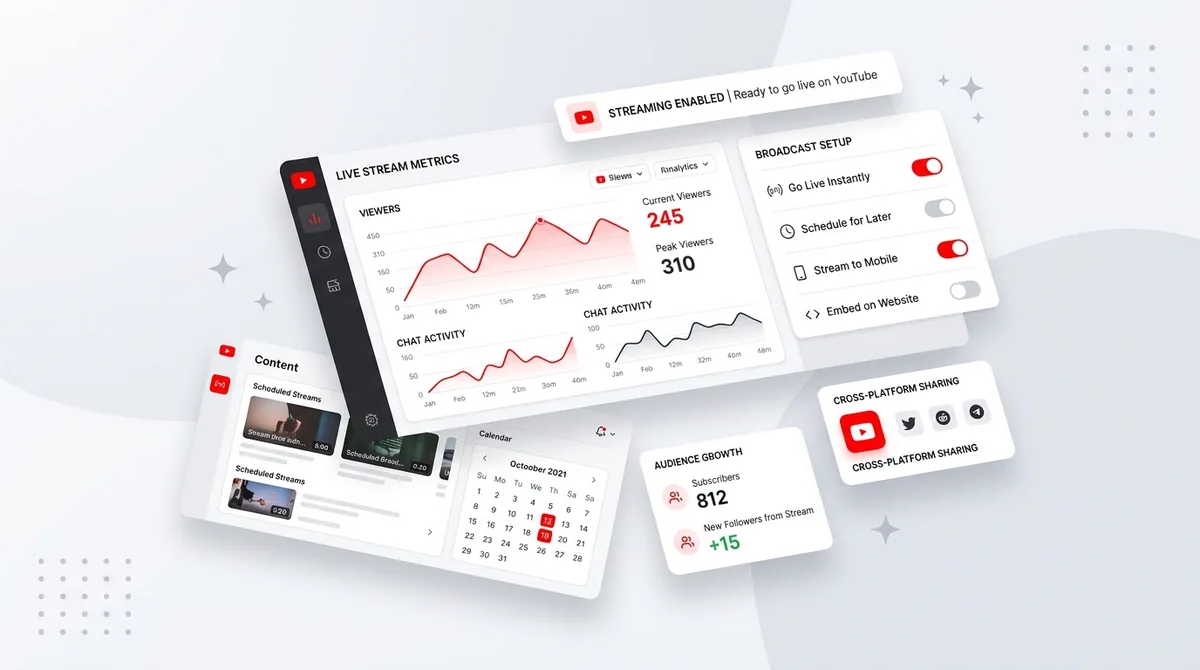
Here’s the real story: YouTube’s 1,000-subscriber requirement only applies to one thing — going live directly from the YouTube mobile app. If you use a laptop, desktop browser, or an encoder like OBS, you can stream with zero subscribers. Most creators could be live this week. They just haven’t flipped the right switches.
The 1,000-subscriber rule isn’t actually one rule
YouTube has different “gates” for different types of live streams, which is why everyone is so confused about how to live stream on YouTube without 1000 subscribers.
- Mobile live (YouTube app) → requires 1,000+ subscribers, plus channel verification and no active violations.
- Desktop/webcam live (browser) → no subscriber minimum, just a verified channel and 24-hour activation delay.
- Encoder live (OBS, Streamlabs, etc.) → same as desktop: no sub requirement, but you must be verified and wait 24 hours after you first enable live.
So the rule isn’t “You can’t live stream until 1K.” It’s “You can’t tap ‘Go Live’ on your phone until 1K.” The rest is wide open.
Can I live stream on YouTube without 1,000 subscribers?
Yes — you can live stream on YouTube without 1,000 subscribers if you stream from a desktop browser or an encoder (OBS, Streamlabs, etc.) instead of mobile. Mobile live streaming via the YouTube app requires 1,000+ subscribers and a 24-hour wait period, but desktop and encoder streaming have no subscriber minimum at all.
Why YouTube has the 1,000-subscriber mobile rule
Back in 2018, YouTube rolled out the 1,000-subscriber requirement specifically for mobile live streaming. It wasn’t to punish small creators. It was damage control.
Before that, anyone could hit “Go Live” from their phone in seconds. That meant all the worst stuff on the internet — spam, hate broadcasts, dangerous stunts — could be pushed live with almost no friction. Phones are anonymous-feeling, always in your hand, and way too convenient for bad actors.
So YouTube added a friction filter. Mobile live now requires:
- A “real-ish” channel (1,000 subs is a decent proxy for that)
- Verification and good standing
- Some history of normal behavior
Desktop and encoder streams, on the other hand, take more effort: you need a computer, a bit of setup, sometimes extra software. That extra work weeds out a lot of the throwaway abuse. It’s the same principle as requiring two-factor authentication for sensitive actions — more steps, fewer impulsive disasters.
From a behavior angle, this makes sense: the easier something is, the more it gets abused. YouTube didn’t lock small creators out of live streaming. They just raised the barrier on the easiest path (mobile) and left the more intentional paths (desktop/encoder) wide open.
You can see this spelled out in YouTube’s own support docs at https://support.google.com/youtube/answer/9228381, but they don’t exactly scream it from the rooftops. Which is why most people still think 1K is a hard requirement for all lives.
Method 1: How to live stream on YouTube without 1000 subscribers from a desktop browser
If you just want to get on camera and talk to your audience, the simplest way to live stream on YouTube without 1000 subscribers is a basic browser-based webcam stream. No extra software. Just you, your webcam, and YouTube Studio.
This is perfect for Q&As, co-working streams, tutorials where you don’t have to screen share, or “just chatting” style lives.
Step 1 — Verify your YouTube channel
You cannot skip this. Verification is the gate for all live streaming, regardless of subscriber count.
- Go to studio.youtube.com.
- Click the gear icon in the bottom left → Settings.
- Go to Channel → Feature eligibility.
- Under “Intermediate features”, you’ll see an option to Verify.
- Verify via SMS code. Takes about 30 seconds.
Most “Why can’t I go live?” posts in YouTube forums are literally just unverified channels. People assume the 1K rule is blocking them. In reality, they never finished this boring little phone step.
Step 2 — Wait 24 hours after first enabling live streaming
YouTube imposes a one-time 24-hour delay between you enabling live and your first actual broadcast. This is universal: big channels, small channels, zero subs, 10 million subs — doesn’t matter.
Why? Again, friction. It gives YouTube a buffer to flag clearly sketchy accounts before they go live, and it slows down throwaway “I just created this account five minutes ago to cause chaos” users.
Practically, for you, it means: turn on live streaming at least a day before your first real event. Don’t set everything up the morning of a launch stream and expect to go live in 5 minutes. You’ll be staring at a “You can stream in 24 hours” message instead.
Step 3 — Start the stream from desktop
Once verification and the 24-hour wait are out of the way, you’re good.
- On YouTube (anywhere on the site), click the camera icon in the top right.
- Click Go live.
- In Live Control Room, choose the Webcam tab.
- Fill in your title, description, visibility (Public/Unlisted/Private), and schedule if needed.
- Check your audio and video preview.
- Click Go Live.
Notice what doesn’t appear anywhere in that flow? A subscriber check. YouTube doesn’t care if you have 3 subscribers or 30,000 for this type of stream.
Mini scenario: you’re a fitness coach with 120 subs. You can absolutely run weekly live workouts from your laptop. One camera, one mic, browser live — that’s enough to start building a core fanbase around real-time sessions.
Ready to save 15+ hours every week?
Join other creators who've automated their social media with SocialCal.
Get started freeMethod 2: How to live stream on YouTube without 1000 subscribers using OBS or Streamlabs
If you want screen shares, overlays, multiple scenes, or you’re planning to do this regularly, you’ll outgrow the basic webcam stream quickly. That’s where encoders like OBS, Streamlabs, or similar apps come in.
The key part: YouTube treats encoder streams the same as desktop streams. No 1,000-subscriber requirement. Just verification + that same 24-hour activation delay.
Why OBS gives you more control
OBS (Open Broadcaster Software) is basically the standard for serious streamers. Yes, there’s a small learning curve. But it pays off fast.
What you get with OBS or Streamlabs:
- Multiple sources — camera, screen, overlays, separate audio tracks, browser windows.
- Scenes — one click to switch between “Just Chatting”, “Screen Share”, “BRB” screens, etc.
- Custom graphics — frames, lower-thirds, alerts from services like StreamElements.
- Better audio routing — use virtual mics, music, and filters for a more polished sound.
From the viewer’s perspective, this looks like a fully produced show, not just a raw webcam. That perception shift alone can boost retention and chat engagement, because it feels more like an event than a random stream.
Step 1 — Get your YouTube stream key
Your stream key is basically a password that lets OBS send video to your YouTube channel.
- Go to YouTube Studio.
- Click the camera icon → Go live.
- Go to the Stream tab (not Webcam).
- Under “Stream settings”, you’ll see a Stream key.
- Click Copy or “Reset” if you want a fresh one.
Protect this like a password. Anyone with that key can stream to your channel.
Step 2 — Configure OBS
Once OBS is installed, you only have to do this setup once.
- Open OBS → go to Settings → Stream.
- Set Service to YouTube.
- Paste your Stream key in the box.
- Go to Settings → Output.
- Set your video bitrate to around 4,500–6,000 Kbps for 1080p.
- Set Encoder to x264 (CPU) or NVENC if you have an NVIDIA GPU.
Then build your scene:
- Add a Video Capture Device (your webcam or camera capture card).
- Add a Display Capture or Window Capture for screen shares.
- Add Image or Browser sources for overlays.
Example: you’re teaching editing inside Premiere Pro. Scene 1 is just your face for the intro. Scene 2 is full screen Premiere with your camera in the corner. Scene 3 is a “Thanks for watching” end card. One click switches between them, and your stream feels 10x more put-together.
Step 3 — Start streaming
Here’s the flow that trips people up the first time:
- In OBS, click Start Streaming. This doesn’t make you live yet; it just sends the video feed to YouTube.
- Go back to YouTube’s Live Control Room — you’ll see a preview of your stream.
- Check audio levels and video quality.
- When you’re ready, click Go Live in YouTube.
- At the end, click End Stream in YouTube, then Stop Streaming in OBS.
This two-step model exists so you can safely fix things before your audience sees anything. Think of OBS as the studio, YouTube as the broadcast button.
One more pro tip: run a private or unlisted test stream first. Stream for 2–3 minutes, stop, and watch the replay. You’ll catch weird echo issues or blurry video before you embarrass yourself in front of real viewers.
Method 3: Mobile streaming alternatives (third-party apps)
Alright, but what if you specifically need your phone? Maybe you’re IRL streaming, doing live event coverage, or you literally don’t own a laptop.
You still have options that are fully allowed by YouTube — they just route your stream through the “encoder” door instead of the “mobile app” door.
StreamYard, Restream, and similar platforms
Tools like StreamYard and Restream run in the browser and connect to YouTube via the encoder API. You log into their platform, connect your YouTube account, and they send the stream to YouTube as if they were OBS.
The hack (that’s not really a hack) is: a lot of these tools have mobile web or app interfaces. So you’re holding a phone, but as far as YouTube is concerned, this is an encoder stream — not a native mobile stream. That means no 1,000-subscriber requirement.
Most of them have free tiers that are more than enough for getting started: single destination, basic branding, maybe a watermark. For testing your live flow and building confidence, that’s fine.
Mobile camera + USB to laptop streaming
If you’ve got a half-decent phone camera and a modest laptop, this combo gives you crazy quality for cheap.
The setup is simple:
- Install an app that turns your phone into a webcam (like Camo, EpocCam, or NDI HX Camera).
- Connect your phone to your laptop via USB or Wi-Fi, depending on the app.
- In OBS, add your phone as a Video Capture Device.
- Stream from OBS as usual — YouTube sees this as an encoder.
Your viewers get crisp mobile optics with the stability and flexibility of OBS. You get a full encoder setup with almost no extra hardware. Everyone wins.
While you’re tuning your visuals, tools like a social-friendly image converter can help you prep crisp overlays and thumbnails that don’t get wrecked by YouTube compression.
How to actually get to 1,000 subscribers (so this stops being a problem)
Let’s be honest: you probably don’t want to think about how to live stream on YouTube without 1000 subscribers forever. You want to just hit “Go Live” on your phone and not think about workarounds.
Getting to 1K isn’t magic. It’s math:
- You need enough high-retention content for YouTube to understand who to show you to.
- You need a clear niche so new viewers know instantly whether they’re in the right place.
- You need a repeatable cadence so the algorithm sees patterns and your audience builds habits.
The most reliable 0–1K formula I’ve seen for non-celeb creators looks like this:
- 3 Shorts per week — audience discovery, quick tests for hooks and topics.
- 1 long-form video per week — depth, session time, bingeable content.
- Optional: 1 live per week — community building, Q&A, real-time trust.
Example: channel about Notion productivity.
- Shorts: 30–45s tips like “One Notion database that runs my entire week.”
- Long-form: 12–18 minute tutorials like “My Notion second brain setup for freelancers.”
- Lives: “Build your Notion weekly review with me” sessions.
Most creators fail here not because they don’t know what to post, but because they can’t keep this cadence going past week three. That’s where a real content calendar starts to matter. I literally dropped my own posting anxiety when I started dragging videos into a visual calendar instead of keeping it in my head — tools like a simple content calendar make “3 Shorts + 1 long-form + 1 live” feel like a plan, not chaos.
Once you hit 1,000 subs, great — mobile “Go Live” unlocks, and all these workarounds become optional instead of required.
Why most people still get bad results from YouTube live (even when they’re eligible)
Here’s the annoying truth: getting access to live streaming doesn’t magically give you good streams. A lot of creators fight through the 1K confusion, finally go live, and then get 4 viewers and a replay that nobody watches.
Here are the big mistakes I see over and over.
1. Skipping the channel verification step
This one’s boring, but fatal. If you’re not verified via SMS, YouTube won’t let you live stream, period. No error message that clearly says “verify your phone,” just vague “live streaming isn’t available” messages that make you blame subscribers instead of settings.
Fix: before you touch anything else, go to YouTube Studio → Settings → Channel → Feature eligibility and verify.
2. Trying to stream within 24 hours of enabling live
Every time there’s a big launch live, someone flips on live access the morning of and then panics when YouTube says, “You can go live in 24 hours.”
You can’t rush this. The 24-hour delay is baked into YouTube’s system. Plan like this:
- Day 1: Verify channel, enable live.
- Day 2: Run a private test stream, fix audio/lighting.
- Day 3: First real public live.
3. Streaming copyrighted music or content
YouTube’s live Content ID system is aggressive. If it detects copyrighted music or video that isn’t cleared, you can get your stream muted, blocked, or even killed mid-broadcast.
Creators underestimate this constantly. They throw on Spotify in the background and then wonder why their VOD got slapped. Use the YouTube Audio Library or properly licensed tracks instead, or stick to streams where background audio isn’t necessary.
4. Trying to circumvent the mobile 1K rule with sketchy apps
If an app promises “go live from your phone on YouTube with 0 subscribers, no verification,” run. That usually means doing shady stuff with your stream keys or breaking YouTube’s terms.
You might get away with it for a bit, but if YouTube detects abuse or sees weird behavior patterns, you’re risking live access or even your channel. Using legit encoder-based methods from reputable tools is slower to set up, but far safer long term.
5. No structure to the stream
“I’ll just hang out and talk” almost always turns into “awkward rambling and dead air.” Viewers bounce. The replay is unwatchable. You decide live “doesn’t work.”
Create a simple run-of-show:
- 0–3 min: Hook + intro + agenda.
- 3–20 min: Main content (with 2–3 clear segments).
- 20–30 min: Q&A.
- Final 2 min: Recap + next stream tease.
Your energy and clarity will be way better when you’re not making it up on the spot.
From your first stream to a regular streaming cadence
Going live once is a stunt. Going live every week is a strategy.
The YouTube algorithm cares about patterns. When it sees you streaming on a regular cadence — say, every Tuesday at 6 PM — it starts to “expect” that spike of activity. Your regular viewers get trained too. They show up more often, engage earlier, and send those lovely early engagement signals that tell YouTube, “Hey, this is worth pushing to more subscribers.”
The real issue isn’t finding the perfect live setup. It’s being able to do it consistently, alongside Shorts, long-form, and maybe other platforms too. That’s behavior, not tech.
This is where scheduling your pre-live promo and uploads around your streams matters. I like mapping my week on a single calendar — Shorts on Mon/Wed/Fri, long-form on Thursday, live on Tuesday — and then backfilling thumbnails, descriptions, and promo posts. A YouTube-focused planner like a YouTube scheduler makes it way easier to treat lives as part of your content system instead of random chaos.
Quick framework: Your first YouTube live stream in under 30 minutes of setup
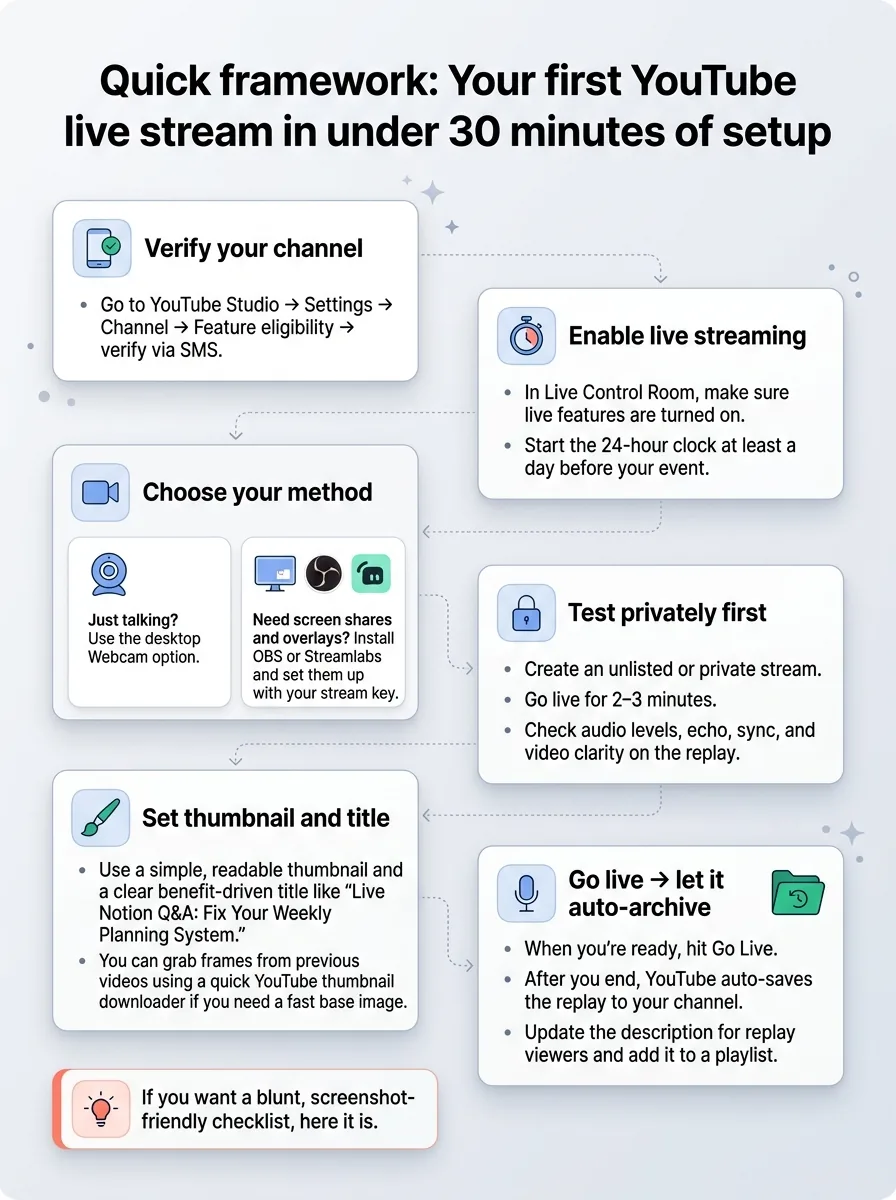
If you want a blunt, screenshot-friendly checklist, here it is.
- Verify your channel
Go to YouTube Studio → Settings → Channel → Feature eligibility → verify via SMS. - Enable live streaming
In Live Control Room, make sure live features are turned on. Start the 24-hour clock at least a day before your event. - Choose your method
Just talking? Use the desktop Webcam option. Need screen shares and overlays? Install OBS or Streamlabs and set them up with your stream key. - Test privately first
Create an unlisted or private stream. Go live for 2–3 minutes. Check audio levels, echo, sync, and video clarity on the replay. - Set thumbnail and title
Use a simple, readable thumbnail and a clear benefit-driven title like “Live Notion Q&A: Fix Your Weekly Planning System.” You can grab frames from previous videos using a quick YouTube thumbnail downloader if you need a fast base image. - Go live → let it auto-archive
When you’re ready, hit Go Live. After you end, YouTube auto-saves the replay to your channel. Update the description for replay viewers and add it to a playlist.
Ready to save 15+ hours every week?
Join other creators who've automated their social media with SocialCal.
Get started freeFrequently asked questions
Why does YouTube require 1,000 subscribers for mobile live?
YouTube added the 1,000-subscriber requirement for mobile live in 2018 to reduce abuse. Mobile live is frictionless — start a stream in seconds from anywhere — which made it a magnet for spam, dangerous stunts, and policy violations. Requiring 1K subs acts as a “this is a real channel with some history” filter for the easiest type of live.
Can I live stream on YouTube mobile with fewer than 1,000 subscribers?
Not through the native YouTube app. If your channel has fewer than 1,000 subscribers, the “Go Live” option on mobile is limited or missing. However, you can still stream from your phone using third-party encoder apps or web platforms that connect to YouTube as an encoder, which bypasses the mobile app restriction while staying within YouTube’s rules.
How long does the 24-hour wait actually take?
The 24-hour activation is pretty literal. Once you enable live streaming for the first time, you’ll need to wait up to 24 hours before you can go live, regardless of whether you’re using mobile, desktop, or an encoder. In practice, some channels get access a bit sooner, but you should always plan on a full day.
Does YouTube count me as a subscriber for the 1K threshold?
No. YouTube doesn’t count the channel owner as a subscriber. The 1,000-subscriber threshold is based on other accounts that have hit the Subscribe button on your channel. You also can’t “cheat” this by making a bunch of dummy accounts — fake or low-quality subs won’t help your lives perform anyway.
What’s the difference between desktop and mobile live streaming on YouTube?
Functionally, the main difference is access and flexibility. Mobile live (via the YouTube app) is limited to channels with 1,000+ subscribers and is best for IRL or on-the-go content. Desktop and encoder live have no subscriber minimum, give you better control over audio/video, allow multiple scenes and overlays, and are easier to integrate into a more professional streaming setup.
The principle: the 1K rule is about mobile, not livestream itself
The whole “1,000 subs to go live” thing is less of a wall and more of a redirect sign. YouTube isn’t stopping you from live streaming; it’s just putting extra friction on the easiest, most abuse-prone path — mobile.
Once you understand that, the question shifts from “Why won’t YouTube let me stream?” to “Which streaming path fits my setup and my consistency?” Start with desktop or OBS, build a simple weekly rhythm, and let the mobile unlock be a milestone you hit naturally as your channel grows.
Growth isn’t about perfect streams or flawless tech. It’s about showing up on a schedule your audience can trust — and if you’re juggling Shorts, uploads, and lives, a simple multi-platform planner like multi-platform publishing helps you treat live streams as a core part of your content system, not a one-off experiment.