Two minutes in the Meta Ad Library changed how my friend launched his SaaS.
Jump to a section:
- What is Meta Ad Library?
- Why Meta Ad Library exists (and why most marketers miss it)
- How to search Meta Ad Library
- Filtering ads like a pro
- What you can actually see in each ad
- 5 practical use cases for marketers
- Common mistakes (why most people get bad results)
- From paid intelligence to organic execution
- 5 searches to run every week (the framework)
- Frequently asked questions
- The intelligence advantage most marketers leave on the table
He was about to spend five figures on Facebook and Instagram ads. Classic situation: three main competitors, zero clarity on what they were actually running. He wanted receipts, not guesses. “What creatives are they scaling? Are they pushing free trial or demo? Are they even spending right now?”
I opened the meta ad library, typed in Competitor #1, set the country, hit search. Then Competitor #2. Then a keyword search for his whole category. In under two minutes, we knew:
Who was spending heavily on video vs static
Which hooks kept repeating across brands
Who was pushing discounts vs outcome-based messaging
Which offers had clearly been running for months (aka, printing money)
He literally said, “Wait, this is free? How does nobody talk about this?”
Most marketers still have no idea Meta hands them their competitors’ ad strategy on a public platter. No login. No paid tool. Just a URL almost everyone ignores.
What is Meta Ad Library?
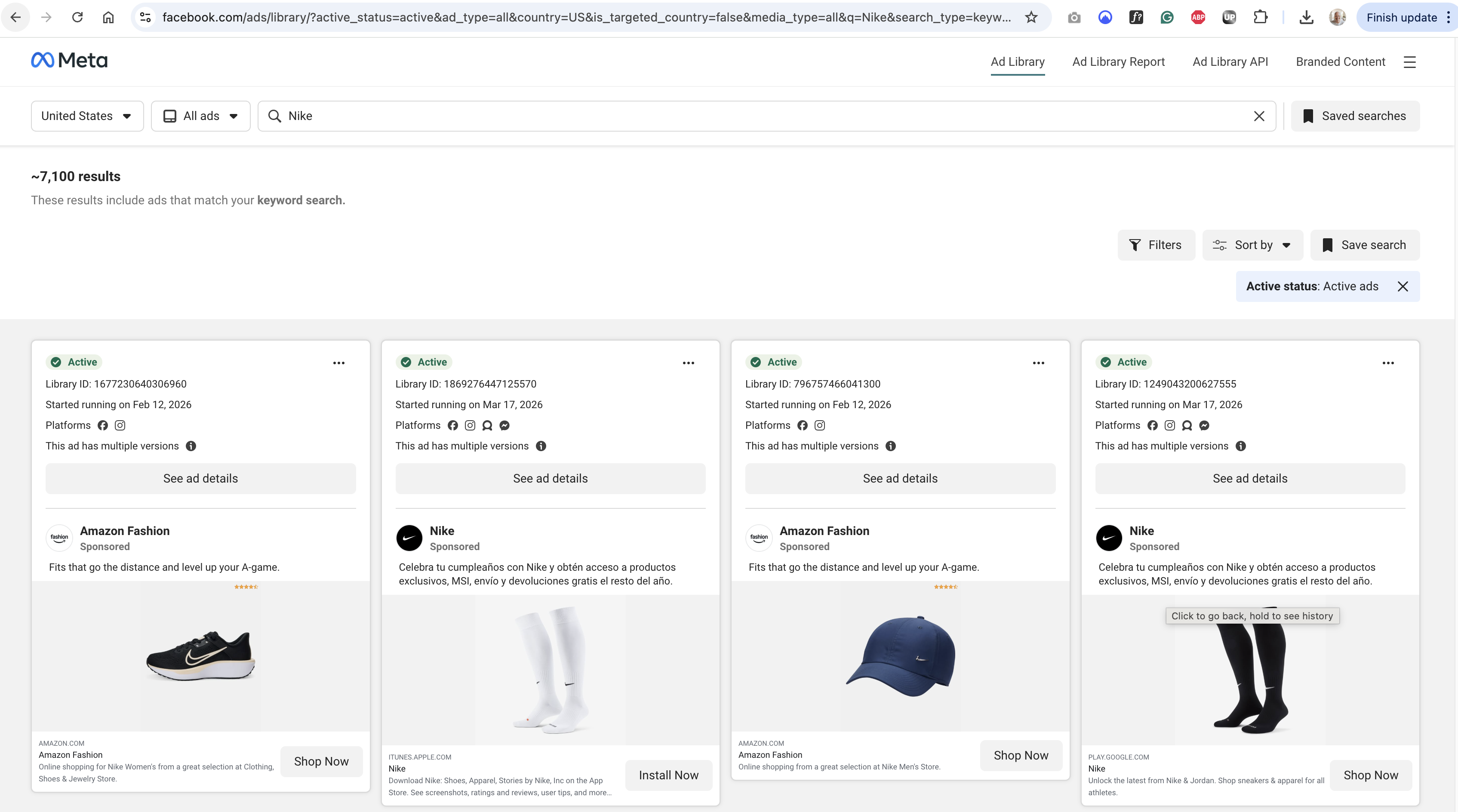
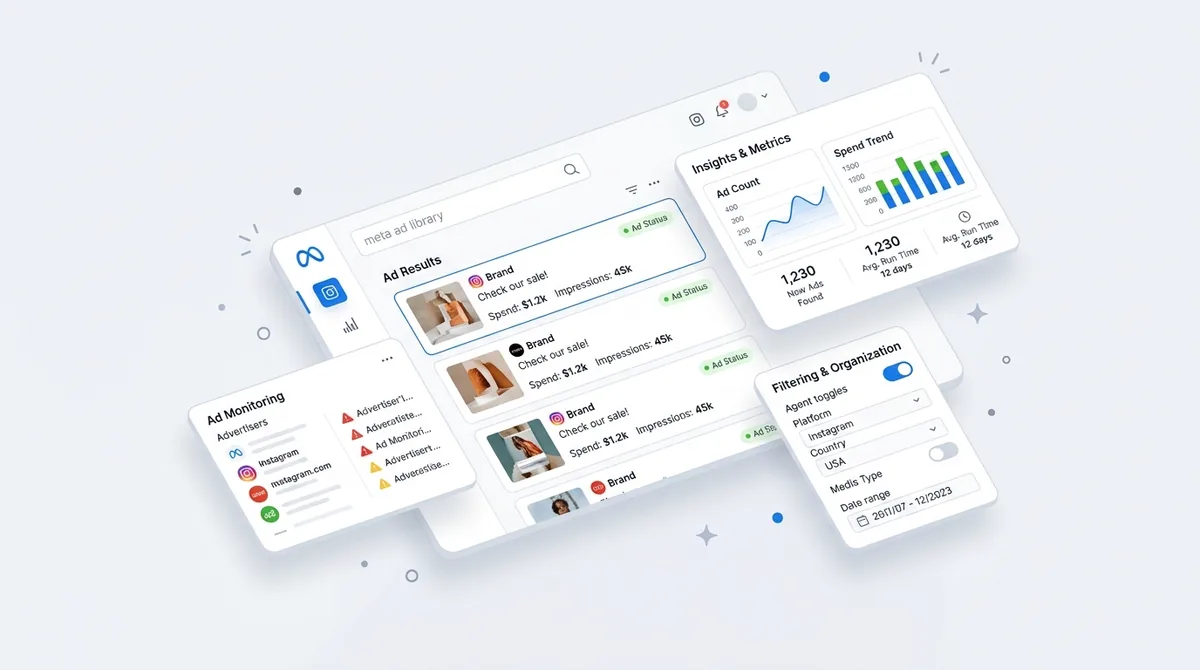
The Meta Ad Library is Meta’s free public database of every active and recent ad across Facebook, Instagram, Messenger, and Audience Network worldwide. You don’t even need an account. You can search by brand name, keyword, or country and see exactly what advertisers are running, what it looks like, and where it’s running.
Why Meta Ad Library exists (and why most marketers miss it)
This thing wasn’t built for marketers. It was built because regulators basically forced Meta to show its homework.
Back in 2018, Meta rolled out the Ad Library to bring transparency to political and issue ads after all the election drama. Only political stuff at first. Then in 2020 they expanded it to include all ads, not just political. Fast forward to 2024, and the EU’s Digital Services Act pushed it even further: EU-targeted ads now show estimated spend ranges and impressions in the library. Officially documented here: https://transparency.metap.com/en-gb/.
So why do so few marketers use it properly?
Old mental model: A lot of people still think it’s “for political ads only.” That was true for about five minutes in internet time. Their brain never updated.
Assumed friction: People assume there’s a login wall, or some ad account requirement, or that it’s buried in Ads Manager. There isn’t. You literally just go to the URL and search.
Habit problem: Marketers are conditioned to pay for ad spy tools. Free stuff feels “less serious,” so they ignore the actual first-party data source.
Behaviorally, we’re lazy. If a tool isn’t part of our weekly workflow, we default back to guessing, screenshots in Slack, and whatever a competitor happens to post publicly.
But once you see your first competitor’s full ad history in one scroll? Your brain rewires.
How to search Meta Ad Library
The front door is boring on purpose: facebook.com/ads/library. That’s it. The bland URL is almost part of why people forget it exists.
Inside, you’ve basically got two ways to search:
By Page name (brand search)
By keyword (market/category search)
The third input that secretly matters is the country selector. Change that and you’re looking at a completely different world.
Search by brand or Page name
If you already know who you’re watching, this is the fastest route.
Start typing their Facebook Page name. The library shows an autocomplete list. Many brands have duplicates (local pages, old pages, fan pages) so you generally want the one with the verified badge or the one that matches their official handle.
Click the Page and you’ll see every ad tied to that Page from the active date back through the archive. Active, paused, seasonal, failed experiments — all of it.
Example: say you’re competing with a big DTC skincare brand. You search their Page name, set the country to "United States." You immediately see:
Evergreen “routine” ads that have run for 90+ days
Short-lived discount pushes that ran for 7 days and died
UGC-style video tests from creators versus studio-shot content
Action step: list your top 5 competitors and run each one by Page name, one country at a time. Don’t overthink it. Just get familiar with how their ad “footprint” looks in the library.
Search by keyword (the less-obvious power move)
This is where the meta ad library quietly becomes a market scanner, not just a spyglass.
Instead of a brand, type in a category term: “project management software”, “AI resume builder”, “sustainable fashion”, “crypto wallet”. The library pulls every ad mentioning that term in the text — across every advertiser.
That means in 60 seconds you can see how an entire vertical is talking about itself:
Which benefits show up over and over ("save time" vs "close more deals")
What offers keep repeating ("14-day trial" vs "no credit card required")
Which visual styles dominate (screenshots, founder face, product UI, memes)
This is insanely useful if you’re new in a niche and don’t even know who the big players are yet. The ads literally tell you who’s spending.
Action step: pick one broad keyword for your category and run it through the library with the country set to “All” if available. Scroll 50–100 ads and jot down the three most common hooks you see.
Why the country selector matters
This feels like a small toggle. It isn’t.
Many brands run totally different campaigns in different markets. New product line in Germany, safety messaging in the UK, price-focused in the US. If you leave the country on “United States” by default, you might be missing half the picture.
Example: imagine a SaaS brand targeting both the US and DACH region. In the US, all their ads push a 7-day trial. In Germany, every ad focuses on data privacy and on-premise options. If you only search “United States,” your messaging notes are going to be skewed and you’ll miss the compliance angle that might matter more worldwide.
Action step: for any global or semi-global competitor, run the same Page search with at least three selectors: their home market, one major EU market, and “All” if that option appears.
Ready to save 15+ hours every week?
Join other creators who've automated their social media with SocialCal.
Get started freeFiltering ads like a pro
Most people open Meta Ad Library, see a giant feed of random ads, and mentally check out. The magic is in the filters on the left.
Three in particular change everything:
Date range
Platform
Creative type
Think of these as ways to control what question you’re asking the data. “What’s working right now?” is very different from “What patterns do they repeat every Q4?”
Date range — finding ads from a specific campaign window
The date filter lets you zoom in on specific moments.
Use “Last 30 days” to see what a brand is testing right now. Because ad auctions optimize on performance, weak ads usually die fast. If something’s been active for weeks, they’re probably happy with it.
Use “Last 12 months” to scan for seasonal behavior: Black Friday pushes, back-to-school, summer sales. Over a year, patterns pop:
They always run big bundles in November
They switch to UGC during Q1
They test new positioning right before new product drops
Mechanism-wise, this works because advertisers ruthlessly kill losers. The stuff that stays visible across long date ranges is usually what survived the testing gauntlet.
Action step: pick one competitor, set date range to "Last 30 days," then again to "Last 12 months." Screenshot both views and compare the difference in message and offer.
Platform filter — Instagram-only vs Facebook-only ads
Meta’s ad system will happily run the same ad across Facebook, Instagram, Messenger, and Audience Network. Smart brands rarely treat those audiences the same.
In Meta Ad Library, you can filter by platform. This lets you see, for example, what a brand is doing just on Instagram versus just on Facebook:
Instagram might show UGC Reels, fast cuts, trending audio vibes
Facebook might show long-form testimonials, detailed carousels, older-skewing creative
Why this matters: audience behavior skews by platform. Younger, visual-heavy on Instagram. Older, info-heavy on Facebook. The algorithm optimizes for clicks and conversions, so over time, creatives that match each platform’s culture tend to survive.
Action step: filter one competitor to Instagram-only, then Facebook-only. Ask: “If I only saw these ads, would I think they’re the same brand?” If not, take notes — that’s essentially their channel strategy.
Creative type — image, video, carousel, multi-image
This is where you figure out what format your niche is actually spending on, not just what people argue about on Twitter.
Creative type filters let you show only:
Image ads
Video ads
Carousels / multi-image formats
If you filter a whole category to “video” and the feed never ends, that’s a clear signal: video is where the budgets are. If carousels dominate, that tells you something else: your audience might need multiple frames to understand or be convinced.
Action step: run a keyword search for your category, then toggle through each creative type. Count roughly how many of the first 50 ads are video vs image vs carousel. That’s your starting point for format testing.
What you can actually see in each ad
Most people just glance at the thumbnail and scroll. The detail view is where the real data lives.
Click into any ad and you’ll usually see:
The full active date range
All creative variants for that ad set (shown in a carousel)
The platforms it’s running on
For EU-targeted ads: estimated spend range + impressions (thanks, DSA)
You’re not seeing performance metrics like CTR or ROAS, but you’re seeing structure, time in market, and, for the EU, rough budget tiers — which is more than enough to reverse-engineer intent.
The variant carousel — multiple creative versions per campaign
This is the part almost everyone misses: that little carousel strip in the ad view usually hides 3–10 creative versions of the same ad.
Meta rewards testing. Brands feed it different thumbnails, intros, aspect ratios, and headlines, then keep the ones that win. Over time, you can literally see which ones survived.
Example: a course creator might be testing:
Version A: talking-head video, direct pitch
Version B: screen-recorded tutorial
Version C: testimonial mashup
Three weeks later, only Version C is still running. That tells you a lot about what the market actually responds to.
Action step: every time you open an ad, click through all variants. Look for which ones are used across multiple campaigns or date ranges — that’s often the “winner” the brand rolled out wider.
EU spend ranges — what the DSA disclosure shows
Since 2024, EU-targeted ads in the meta ad library show spend ranges and impressions, not exact numbers, because of the Digital Services Act.
You’ll see bands like:
$0–$999
$1K–$5K
$5K–$25K
$25K–$100K
$100K+
Are those precise? No. Are they useless? Also no.
Budget bands let you roughly classify competitors:
Are they in the same weight class as you, or 10x bigger?
Which campaigns are they actually backing with spend vs just testing?
Do they push more in certain countries than others?
Action step: when you research EU markets, note which specific messages land in higher spend bands. Don’t copy the line — copy the angle.
What you DON’T see (and why that matters)
Here’s where some “ad gurus” mislead people.
Meta Ad Library does not show:
Specific targeting parameters (interests, lookalikes, retargeting, etc.) for non-political ads
Conversion performance (CTR, CPA, ROAS, purchases)
Spend ranges outside the EU
So if someone tells you, “Just go in the library and copy the best-performing ads,” that’s fantasy. You’re not seeing performance; you’re seeing what’s live, how long it’s been live, and roughly how much backing it has in EU territories.
Why it matters: your job is to reverse-engineer patterns, not exact winning ads. Hooks, angles, framing, structure, creative style — those are fair game to study. Copying ads verbatim is lazy, legally risky, and usually flops because it ignores your brand and audience context.
5 practical use cases for marketers
Cool, you know how to click around. Now what do you actually do with the meta ad library so it moves the needle?
1. Competitive ad research — what is working in your niche
This is the obvious one, but most people still do it badly.
They open a competitor, scroll a bit, screen-record for their boss, and call it “research.” No pattern, no structure, no insight.
Here’s a better workflow:
Pick your top 3 competitors.
Search each brand by Page name.
Filter to “Last 90 days” and platform = All.
Only pay attention to ads that have been active for 30+ days.
Those long-running ads are usually the profit drivers. Brands kill losers fast to stop wasting budget. What survives past a month is at least good enough.
For each long-running ad, note:
First 1–3 seconds of the video (what’s the hook?)
Headline style (question, bold claim, benefit, social proof)
Offer (trial vs discount vs waitlist vs content)
Visual type (UGC, studio, product-only, meme, B-roll)
Action step: put this into a simple spreadsheet. One row per ad, columns for hook, offer, format, and date active. You’ll start to see "greatest hits" lines and angles your niche keeps returning to.
2. Creative inspiration — borrow hooks, formats, CTAs
Most creators hit that “blank doc panic” before writing ads. Meta Ad Library is basically a cheat sheet against that.
Once you spot patterns — like “every top brand in my niche uses before/after screenshots” — you don’t copy the screenshot. You borrow the idea and apply it to your own positioning.
Example: imagine you see a payroll SaaS running a video ad where the founder cold-opens with, “You’re probably wasting three hours a week on payroll.” You could adapt that pattern for your niche as, “You’re probably wasting three hours a week on client reporting.” Same structure, new content.
To build a proper swipe file, you probably want to save ads you like. The library doesn’t give you a download button, but you can grab the creative for reference with tools like SocialCal’s Facebook Downloader or Instagram Downloader. Quick note: this is for internal reference and inspiration only — reposting other brands’ ads as your own is a copyright headache you don’t want.
Action step: next time you research a niche, save 10–20 great creatives into a swipe folder. Tag each as "hook idea," "visual idea," or "offer idea" so you’re organized when you start scripting.
3. Pre-launch competitor scouting — what are they testing 30 days out
If you’re gearing up for a launch, you don’t want to be surprised by a competitor dropping something the same week with similar messaging.
Here’s a simple pre-launch ritual:
30 days before your launch, check your top 3 competitors in Meta Ad Library
Filter to “Last 30 days” and sort by newest first
Flag any sudden spikes in new creatives, especially teasers or vague “something big is coming” lines
Brands telegraph their moves through their ad accounts. New sets of creatives, new angles, sudden EU spend — those are tells. They often show up in the library before they hit PR, blog posts, or even email.
Action step: during any major launch window, set a weekly reminder to re-check competitors in the 4 weeks before and 2 weeks after your launch.
4. Verifying a brand claim across markets
This one’s underrated.
Brands often adjust their claims by region — sometimes for legal reasons, sometimes because they think no one’s cross-checking.
Example: a cosmetics company runs EU ads with clear “never tested on animals” messaging but no such claim in the US. Or a SaaS says “#1 fastest in the market” in one country but softens it in another.
Meta Ad Library becomes an audit trail:
Search the brand by Page name
Toggle through major countries
Look specifically at claims, guarantees, disclosures
This is useful if you’re doing brand safety work, investigative content, or just trying to understand how seriously a brand takes compliance.
Action step: if you work agency-side, run this check before picking a controversial brand as a client. Their ad history reveals more than their pitch deck.
5. Branded-content disclosure verification
Any time influencers post sponsored content properly using Meta’s branded-content tools, those posts can show up in the brand’s Ad Library.
That means you can:
Verify which influencer posts were actually paid
See which influencer collabs got ad spend behind them
Spot patterns in influencer selection (size, niche, content style)
If you’re an influencer yourself, this is gold. You can show brands real evidence that “Brands in your space are paying creators like me and actually running ads behind our content.” If you’re a brand, you can check if an influencer is being honest about “unpaid” support when you can see otherwise.
Action step: pick one brand that does a lot of influencer work. Search their Page, set the filter to see branded content, and study which creators’ posts they actually turned into ads.
Common mistakes (why most people get bad results)
Most marketers open the meta ad library, click around for five minutes, and decide it’s “meh.” The problem isn’t the tool. It’s how they’re using it.
Searching only the US (most ads are international)
If your competitors operate globally and you leave the country selector on United States, you might be missing 40–70% of what they’re running.
International campaigns often have different angles, compliance wording, and even totally different offers. Ignoring that because you never touch the country dropdown is a rookie move.
Looking only at active ads (the inactive archive is gold)
People treat inactive ads as “failed experiments” and ignore them. Bad idea.
Over a 12-month window, the inactive archive shows how aggressively a brand tests, what they stopped saying, and how their positioning evolved. That story is often more instructive than the current winners.
Ignoring the Page Transparency sidebar
On each brand’s Page, the “Page Transparency” section shows:
When the Page was created
Country/countries of admins
Past name changes
This stuff matters. Frequent name changes and random admin locations can flag dropshippers or unstable operators. Stable Pages with a long history and consistent naming often signal more serious brands whose strategies are worth studying in depth.
Missing the variant carousel
Scrolling past the variant carousel is like skipping A/B tests in your own account. You’re throwing away data.
Remember: the first creative you see isn’t automatically the winner. It’s just one of several versions. You need to scroll through variants and see which ones show up repeatedly across different campaigns or long date ranges.
Not bookmarking competitor pages for weekly checking
If you have to type “Meta Ad Library,” pick a country, search a brand, then filter every time, you won’t do this consistently.
Create a bookmarks folder with the full Ad Library URLs for your main competitors, each pre-filtered to your main market. That cuts your weekly check to one click per brand.
Confusing the political/issue filter with regular ads
The “Issues, Elections, Politics” filter has its own rules, disclosures, and extra transparency. It’s great if you work in that space.
But if you’re selling software, skincare, or consulting, ignore that tab. Mixing political-ad data with regular commercial ads just leads to weird expectations about what should be disclosed.
From paid intelligence to organic execution
Here’s the reality: Meta Ad Library tells you what’s working with paid distribution. It doesn’t run your content for you.
You still have to execute on the organic side — Reels, feed posts, Stories, maybe even Facebook Groups — where most smaller brands and creators actually live.
And there, the algorithm doesn’t care that you “studied the competition.” It cares that you show up consistently. Same general posting windows, same niche focus, enough volume that it can learn who engages with you. Meta’s systems are built around repeated signals: if you ghost your audience for a week, your next post dies because your early engagement velocity tanks.
The real issue usually isn’t “I don’t know what works.” Once you’ve spent an hour in Meta Ad Library, you do. The issue is doing the posting part consistently while you’re also running a business, editing content, and putting out fires.
That’s where having a scheduler actually solves a behavioral problem, not just a time problem. When you plan a week of posts on a visual calendar and queue them — say using a tool like SocialCal’s Facebook Page Scheduler — you’re training yourself to be consistent even when you’re slammed.
Let Meta Ad Library handle the paid intelligence. Let your scheduler handle the "I actually showed up 5x this week" part.
5 searches to run every week (the framework)
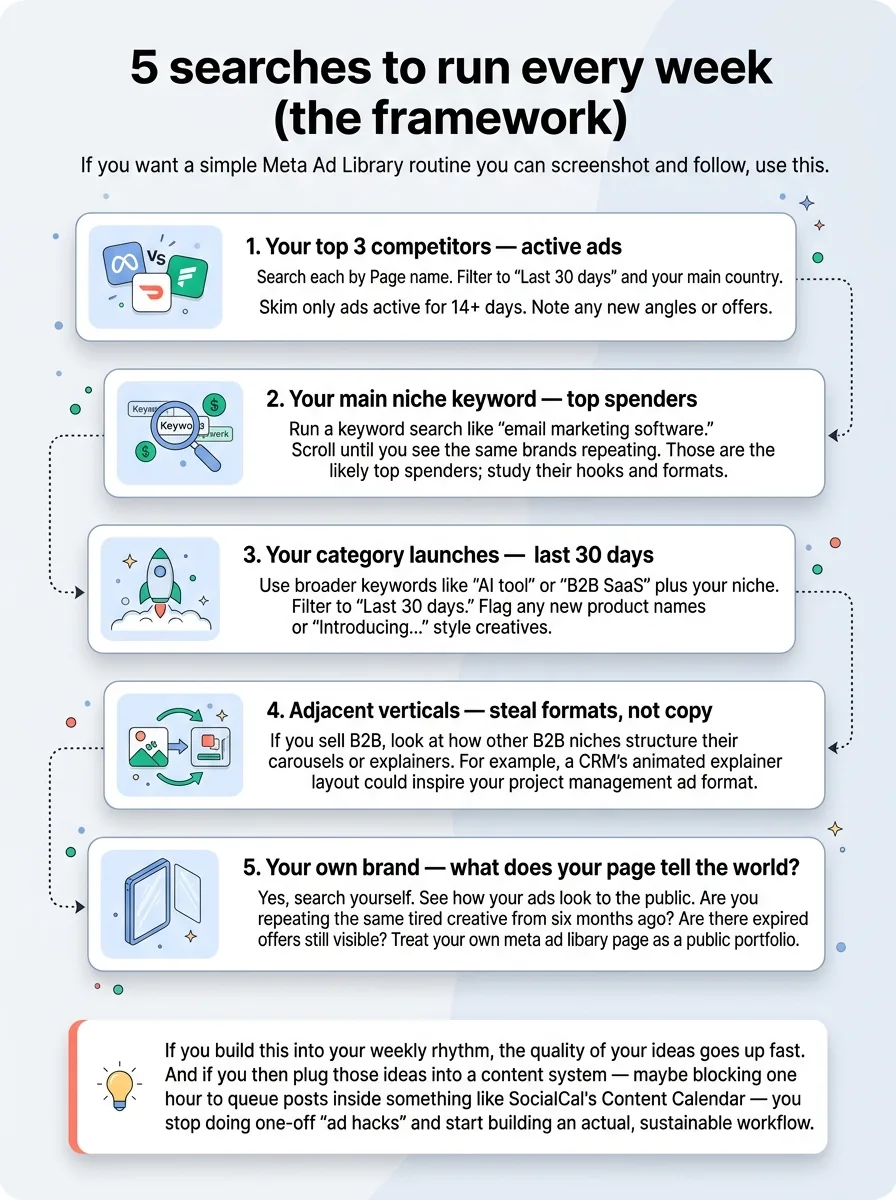
If you want a simple Meta Ad Library routine you can screenshot and follow, use this.
Your top 3 competitors — active ads
Search each by Page name. Filter to “Last 30 days” and your main country. Skim only ads active for 14+ days. Note any new angles or offers.Your main niche keyword — top spenders
Run a keyword search like “email marketing software.” Scroll until you see the same brands repeating. Those are the likely top spenders; study their hooks and formats.Your category launches — last 30 days
Use broader keywords like “AI tool” or “B2B SaaS” plus your niche. Filter to “Last 30 days.” Flag any new product names or “Introducing…” style creatives.Adjacent verticals — steal formats, not copy
If you sell B2B, look at how other B2B niches structure their carousels or explainers. For example, a CRM’s animated explainer layout could inspire your project management ad format.Your own brand — what does your page tell the world?
Yes, search yourself. See how your ads look to the public. Are you repeating the same tired creative from six months ago? Are there expired offers still visible? Treat your own meta ad library page as a public portfolio.
If you build this into your weekly rhythm, the quality of your ideas goes up fast. And if you then plug those ideas into a content system — maybe blocking one hour to queue posts inside something like SocialCal’s Content Calendar — you stop doing one-off “ad hacks” and start building an actual, sustainable workflow.
Ready to save 15+ hours every week?
Join other creators who've automated their social media with SocialCal.
Get started freeFrequently asked questions
Is Meta Ad Library free?
Yes. The meta ad library is 100% free and you don’t need to log in. Just go to facebook.com/ads/library, pick a country, and start searching by Page or keyword. If you want a faster entry point with some handy filters baked in, tools like SocialCal’s Facebook Ad Library checker can simplify that first step.
Can I see exact ad spend?
No. You only see estimated spend ranges and impressions for EU-targeted ads, because of EU transparency rules. Outside the EU, you don’t see spend at all — you have to infer priorities from how long ads have been active and how many variants a brand is testing.
How long do inactive ads stay in Meta Ad Library?
It depends on the ad type and jurisdiction, but commercial ads generally stay available for at least a year. Political and issue ads have longer retention windows due to regulation, described in Meta’s transparency docs here: https://www.facebook.com/business/help/2220769957980099.
Can a brand hide ads from Meta Ad Library?
No. If an ad runs on Meta’s platforms, it has to be disclosed in the Ad Library. Brands can pause or delete campaigns going forward, but they can’t quietly hide current or historical ads from public view if they were actually served.
Does it work for Instagram-only ads?
Yes. The library includes ads run on all Meta properties — Facebook, Instagram, Messenger, and Audience Network. Use the platform filter to zero in on Instagram-only ads if that’s where you care about creative choices.
Can I download ad creative from Meta Ad Library?
Meta Ad Library itself only lets you preview ads; there’s no official download button. If you want to keep creatives for your private swipe file, you can grab assets using tools like SocialCal’s Facebook Downloader or Instagram Downloader. Just use them for research, not for reposting someone else’s ad as your own.
The intelligence advantage most marketers leave on the table
Every ad any brand runs on Meta is basically taped to the front window in broad daylight. Most marketers walk right past that window and then complain they “don’t know what’s working."
The ones who quietly study the meta ad library each week end up with deeper pattern recognition, better hooks, and far fewer blind guesses. Growth isn’t about writing the perfect ad on the first try; it’s about consistently shipping smart tests, reusing what works, and building a content rhythm you can actually maintain — especially when you’ve got tools like SocialCal handling the scheduling grind in the background while you handle the strategy.