YouTube account hijacking is one of the most preventable crises in creator life — but only if you act fast. If you're here frantically Googling “recovering youtube account” with your heart in your throat, breathe. The hijackers’ goal is simple: drain your monetization, run scam livestreams, and burn your audience’s trust before you can stop them. The next 60 minutes decide how bad that damage gets.
Jump to a section:
- How to recover a hacked YouTube account
- If you suspect your YouTube was hacked, these next 60 minutes matter
- How YouTube accounts get hacked (so you spot it earlier next time)
- Step 1: Account recovery via Google’s standard flow
- Step 2: When standard recovery doesn’t work
- Step 3: Contact YouTube directly for channel recovery
- Step 4: Lock down the account once recovered
- Mistakes that make recovery harder
- After recovery — building permanent resilience
- Quick framework: 30-minute post-recovery checklist
- Frequently asked questions
- The principle: 2FA is the single best preventative measure
How to recover a hacked YouTube account
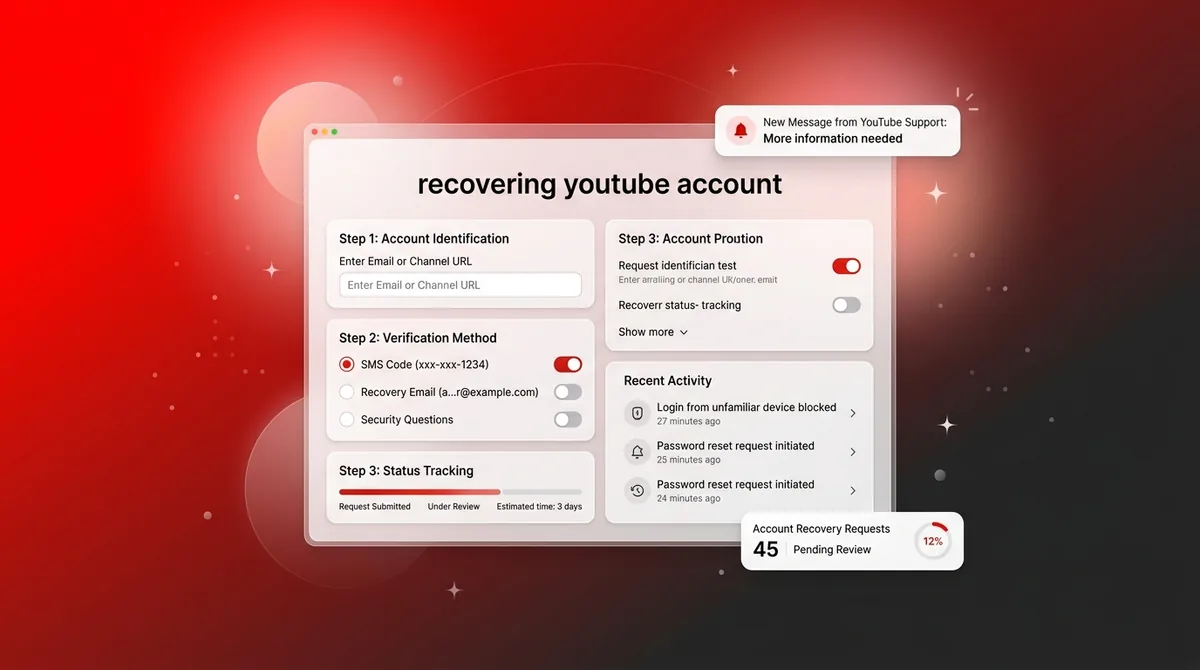
Recover a hacked YouTube account by going to accounts.google.com/signin/recovery, which handles both Google and YouTube. Verify your identity using your recovery email, phone number, or backup codes. If you can’t get in this way, submit YouTube’s Channel Recovery form for manual support. Most creators recover access within 24–72 hours.
If you suspect your YouTube was hacked, these next 60 minutes matter
Here’s the ugly truth about recovering youtube account access: creators usually notice after the worst stuff has already started. Your banner’s changed. There’s a crypto livestream running on your channel. Your audience is DM’ing “is this you?”
The hijacker isn’t trying to “own” your channel long-term. They’re running a smash-and-grab. The algorithm is their accomplice — your channel already has authority, so YouTube happily pushes their scam stream, their unlisted affiliate spam, whatever they upload.
The window between you spotting something weird and you forcing them out is the whole game. The longer they stay logged in, the more:
- They change recovery email and phone numbers
- They add new OAuth-connected apps to keep access even after a password reset
- They trigger policy violations that can get your channel suspended
Most creators waste the first 30 minutes panicking, clicking random links, or asking Twitter for help instead of going straight to recovery flows that actually work. Don’t do that. You’re about to move methodically, not emotionally.
Ready to save 15+ hours every week?
Join other creators who've automated their social media with SocialCal.
Get started freeHow YouTube accounts get hacked (so you spot it earlier next time)
If you understand how hijacks actually happen, you catch them earlier. And early detection makes recovering youtube account access way easier, because your recovery methods usually aren’t fully changed yet.
Phishing emails impersonating YouTube/Google
Most common attack. You get an email that looks exactly like a YouTube policy notice: “Your video has been flagged for copyright”, “Your channel will be terminated in 24 hours”, something like that.
The email links you to a fake Google login page. It looks pixel-perfect. Same logo, same fonts, sometimes even the correct background illustration. You enter your email and password… and boom, the attacker now has your credentials.
They don’t need to be a genius. They usually run a script that tries that same combo against your Gmail, AdSense, Drive, the works. Verified channels and monetized creators are prime targets because there’s actual money to steal.
Red flags that most creators ignore:
- Sender email is something like “[email protected]”, not @google.com
- Links don’t point to https://accounts.google.com or https://youtube.com
- The threat is urgent and vague: “Your channel will be removed in 24 hours” with no specifics
Google actually documents how these phishing attempts work at https://support.google.com/accounts/answer/6365252, and yes, most people still ignore it.
OAuth grant abuse via fake apps
This one feels sneaky because you never “give them your password.” Instead, you connect a fake app.
Scenario: you’re offered an early-access sponsorship for a “YouTube analytics tool” or “brand deal dashboard.” You click “Sign in with Google” and approve permissions like “View and manage your YouTube account.”
That OAuth grant is basically a signed permission slip saying “this app can control my channel” without needing your password ever again. They can:
- Upload and delete videos
- Change titles, thumbnails, and descriptions
- Start livestreams
- Change some channel settings
You can change your password after — doesn’t matter. That app still has access until you revoke it.
Legit tools usually ask for the minimum scopes they need and have clear docs and websites. A random .xyz domain asking for “full YouTube Studio access” is a no from me.
Password reuse across breached sites
This one feels boring, but it quietly wrecks more channels than anything else.
You reuse the same password for an old forum, a sketchy app, your Netflix login, and your Google account. That forum gets breached, the passwords get dumped, and attackers run what’s called “credential stuffing” — trying the same email/password pair across major platforms: Google, Meta, PayPal, you name it.
Once they’re in, they go straight to changing recovery methods and adding 2FA that they control. That’s why recovering youtube account access feels impossible in the worst cases: you’re not just fighting one password change, you’re fighting a whole identity takeover.
The fix is the thing you already know: unique passwords + 2FA. But creators skip it because “I’ll do it later” turns into “why is there a Russian crypto stream on my channel?”
Step 1: Account recovery via Google’s standard flow
Your YouTube account is your Google account. So the first stop for recovering youtube account access is always the same: https://accounts.google.com/signin/recovery.
Here’s what actually works in practice:
- Go to the recovery page on a secure device you control (not a random cafe PC).
- Enter the email tied to your YouTube channel.
- Follow Google’s prompts: recovery email, phone, backup codes, or device prompts.
If you still have access to at least one recovery method, you can usually get back in under 30 minutes. Don’t overthink it. Just move through the prompts calmly and carefully.
If you have access to your recovery email
Recovery email is the easiest path.
Google sends a message like “Confirm it’s you” to your recovery inbox. Inside is either a code or a link. Click the link from the same browser you started recovery on if you can — it keeps the session clean.
Then you’ll be asked to set a new password. Critical points most people ignore:
- Use a password you’ve never used anywhere else, ever
- Make it long (a passphrase is usually better than “P@ssw0rd!!” nonsense)
- Don’t store it in a random notes app with no device lock
Right after the password reset, you’ll usually see prompts to review security and enable 2-step verification. Do it before you go check your YouTube channel. Securing the account beats curiosity.
If you have access to your recovery phone
If Google offers SMS or device prompts, use them.
You get a text with a code, or a push notification like “Are you trying to sign in?” on a trusted device. Confirm, enter the code, and again — set a strong, unique password.
Same rule: don’t stop at the password. Walk through the security checkup, turn on 2-step verification, and add backup options while you’re already here. Most creators don’t revisit this screen for years.
If you have backup codes
Backup codes are the “break glass in case of emergency” option.
If you generated them earlier and saved them somewhere offline, you basically bypass every hijacker trick. They can’t intercept those codes. They can’t stop you from using them.
Enter one of your backup codes when prompted, reset your password, and overhaul your security. If you’ve never set backup codes up, make that your first post-recovery task.
Step 2: When standard recovery doesn’t work
Sometimes you go through the normal flow and get slapped with “Google couldn’t verify this account belongs to you.” That usually means the attacker moved fast: changed recovery email, phone, maybe even 2FA.
Annoying? Absolutely. Hopeless? Not even close.
Use Google’s “I don’t have access” flow
During the recovery process, look for links like “Try another way” or “I don’t have my phone.” These options eventually push you into a more detailed questionnaire instead of just sending codes.
Google may ask things like:
- When you created the account (month and year)
- Rough date of your last successful login
- Other Google services you use (Gmail, Drive, Photos)
- Names of a few labels in your Gmail, if you use it
Answer as accurately as you can. Don’t guess wildly — Google compares your answers to their internal logs. If you say you created the account last year and it was actually 2014, that mismatch hurts you.
This is where having your original welcome emails, first AdSense messages, or old screenshots of your channel can help jog your memory.
Submit Google’s account recovery form with documentation
If the automated stuff keeps failing, escalate.
Head to the account recovery troubleshooter at https://support.google.com/accounts/troubleshooter/2402620. This is where you can submit a more detailed request for manual review.
Have this ready:
- The exact email address of the hacked account
- Approximate date you created the account
- The date you know you last logged in successfully
- Billing details tied to the account (Google One, YouTube Premium, Workspace, AdSense)
- Recent activity: last videos uploaded, channel name, any recent brand deals paid via Google Pay
Manual review usually takes 3–7 business days. During that time, don’t keep firing new requests every few hours. That just creates noise. Make one solid, detailed submission and monitor the inbox you provided.
Step 3: Contact YouTube directly for channel recovery
Here’s where creators get confused: your Google account and your YouTube channel are connected, but they’re not identical. You can get into one and still be locked out of the other.
If you’ve regained access to your Google account but your YouTube channel is missing, renamed, or seems detached, use YouTube’s dedicated Channel Recovery form: https://support.google.com/youtube/contact/channel_unaccess.
This form is for situations like:
- You can log into Google, but your channel doesn’t show in YouTube Studio
- Your channel URL points to something completely different
- The hijacker changed ownership/permissions in Brand Account settings
Expect to provide:
- Your channel URL and current channel name
- Screenshots of what you’re seeing now
- Proof you previously controlled the channel (old emails, brand deals, Analytics screenshots)
Verified channels and partners typically get responses within 24–48 hours. Smaller, non-verified channels can take longer, but they do get restored. I’ve seen channels under 10k subs come back from full hijacks — it just required patience and relentless documentation.
Step 4: Lock down the account once recovered
Recovering youtube account access is only half the job. If you stop here, you’re the person who changes the front door lock but leaves the windows open.
Change passwords on your machine, not the hijacker’s session
Once you’re back in, don’t assume the attacker is automatically kicked out. If they still have an active session, they might be watching every change you make in real time.
From your Google Account:
- Go to Security → Your devices
- Click Manage all devices
- Use Sign out on every device that isn’t you, then use the “Sign out of all” option if it’s available
Then change your password from your own trusted device. Not from an old shared computer, not from your work PC that your whole team uses.
Enable 2FA via authenticator app, not SMS
Most creators stop at “I turned on 2FA, I’m safe now.” Not quite.
SMS-based 2FA can be beaten with SIM swaps. That’s where an attacker convinces your phone carrier to move your number to their SIM card. Annoyingly common if you’re even mildly public.
Use an authenticator app instead: Google Authenticator, Authy, 1Password, whatever password manager you trust. These apps generate codes locally on your device, offline. Hijackers can’t intercept that unless they have your unlocked phone.
While you’re in the 2FA settings:
- Generate backup codes and print them or write them down
- Store them somewhere physical, not just another digital note on the same hacked laptop
Audit OAuth permissions and remove suspicious apps
This is the step almost everyone skips. It’s also how hijackers keep walking back in after a “successful” recovery.
In your Google Account:
- Go to Security → Third-party access
- Click Manage third-party access
- Look at every app that has access to your Google or YouTube data
Revoke anything you don’t fully recognize or use. That random “YouTube brand collab” app from a year ago? Gone. The shady analytics dashboard your friend’s friend recommended? Gone.
Real tools are transparent about why they need access. For example, something like SocialCal’s YouTube Scheduler explains that it needs permission to upload and schedule videos — and you can disconnect it anytime from your own Google security page.
Check YouTube Studio for unauthorized changes
Once your Google account is secure and OAuth is cleaned up, then you inspect the actual channel.
Go into YouTube Studio and review:
- Content: any new uploads, unlisted videos, or livestreams you didn’t start
- Customization: channel banner, avatar, links on your profile
- Monetization: AdSense or payment destination changes
- Settings → Permissions: new managers or owners
If videos are missing, don’t freak out immediately. YouTube can sometimes restore deleted videos and streams from backups, especially if you contact support quickly and explain it was a hijack.
Document everything: timestamps, titles, screenshots. That paper trail really helps if you’re asking YouTube to roll back changes.
Mistakes that make recovery harder
Most creators don’t lose their channel because the attacker is brilliant. They lose it because they panic. Here’s where recovering youtube account access goes sideways.
Panicking and trying every recovery option simultaneously
People spam every button they see: multiple recovery requests, different answers, different emails, all in an hour. Google’s system is trying to match behavior to a real human pattern. Chaotic flailing looks a lot like an attacker trying to brute-force their way in.
Pick your most likely recovery path (email, phone, backup codes) and follow it all the way. If that fails, then move to the next method. One clean trail beats ten half-finished ones.
Creating a new YouTube account “as a backup”
This doesn’t help you recover anything.
Spinning up a fresh Google account while the old one is under review just splits your identity — and sometimes confuses support when you contact them from a brand-new email that has no history with the channel you’re trying to rescue.
If you want future redundancy, that’s a separate project: setting up manager roles, secondary owners, team emails. Not something you do mid-crisis.
Paying “account recovery services”
This one hurts to see, but it happens: desperate creators paying random Telegram users $300–$1,000 to “expedite” recovery.
There is no secret fast lane. Even Google Workspace support doesn’t bypass the core recovery process for consumer accounts. Best case, these “services” just submit the same forms you could use yourself. Worst case, they’re hijackers too, and you’ve just handed them even more info.
Emailing random YouTube creator addresses
You see a YouTube employee speak at a conference, find their email, and beg them for help. Or you send desperate essays to every “[email protected]” you can guess.
That’s not how this works. YouTube doesn’t use public inboxes for account recovery. The official forms, Creator Support chat (if you have access), and the account recovery workflows are the only paths that actually move tickets inside their system.
After recovery — building permanent resilience
Once you’ve been through a hijack, you start to see your channel differently. It’s not just “my YouTube login” anymore, it’s your income, your audience, your backlog of work.
The goal now is simple: make recovering youtube account access something you never have to Google in a panic again.
Your resilience stack should look like this:
- Authenticator-app 2FA on your main Google account
- Unique, long passwords in a password manager
- Backup codes printed and stored offline
- Regular audits of connected third-party apps
- Off-YouTube audience touchpoints: email list, other platforms
Here’s the part creators forget: a hacked channel shouldn’t be able to silence you everywhere. If all your content and comms live on one platform, one hijack or suspension can flatten your momentum overnight.
This is why I’m a fan of planning content in a central calendar and publishing across multiple platforms by default. Tools like SocialCal’s multi-platform publishing make it dumb-easy to turn a YouTube script into a LinkedIn post, a Twitter thread, and a Shorts/TikTok caption in one pass. If YouTube ever goes dark for a week, your audience still sees you everywhere else.
Quick framework: 30-minute post-recovery checklist
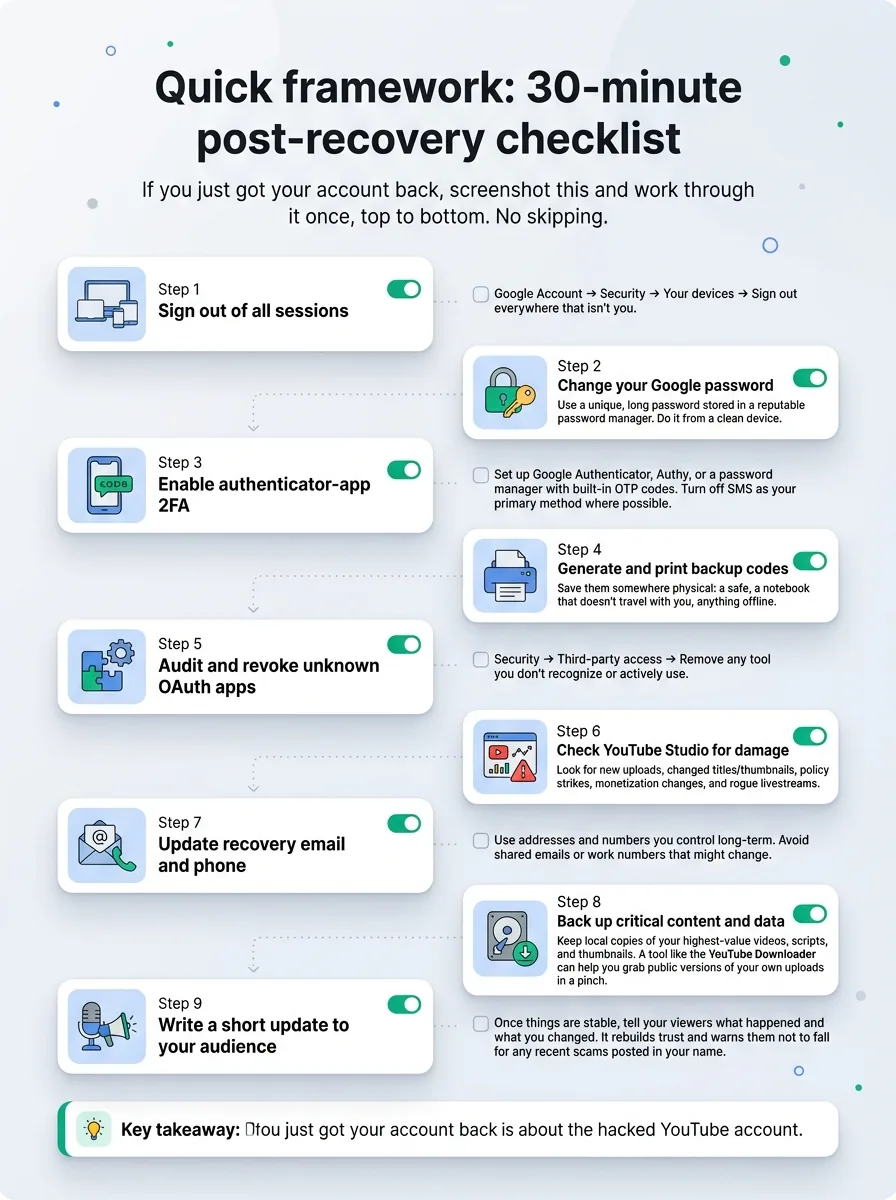
If you just got your account back, screenshot this and work through it once, top to bottom. No skipping.
- Sign out of all sessions
Google Account → Security → Your devices → Sign out everywhere that isn’t you. - Change your Google password
Use a unique, long password stored in a reputable password manager. Do it from a clean device. - Enable authenticator-app 2FA
Set up Google Authenticator, Authy, or a password manager with built-in OTP codes. Turn off SMS as your primary method where possible. - Generate and print backup codes
Save them somewhere physical: a safe, a notebook that doesn’t travel with you, anything offline. - Audit and revoke unknown OAuth apps
Security → Third-party access → Remove any tool you don’t recognize or actively use. - Check YouTube Studio for damage
Look for new uploads, changed titles/thumbnails, policy strikes, monetization changes, and rogue livestreams. - Update recovery email and phone
Use addresses and numbers you control long-term. Avoid shared emails or work numbers that might change. - Back up critical content and data
Keep local copies of your highest-value videos, scripts, and thumbnails. A tool like the YouTube Downloader can help you grab public versions of your own uploads in a pinch. - Write a short update to your audience
Once things are stable, tell your viewers what happened and what you changed. It rebuilds trust and warns them not to fall for any recent scams posted in your name.
Ready to save 15+ hours every week?
Join other creators who've automated their social media with SocialCal.
Get started freeFrequently asked questions
How long does YouTube account recovery take?
Most straightforward cases are resolved in 24–72 hours, especially if you still have access to your recovery email or phone. If the attacker changed your recovery methods and you need manual review through Google and YouTube forms, expect 3–7 business days. Extreme edge cases can take longer, but they’re rare.
Can I recover a YouTube channel deleted by a hijacker?
Often, yes, if you move fast. Use the Google account recovery flow first to regain access, then submit the YouTube Channel Recovery form with details and screenshots. YouTube can sometimes restore deleted channels and videos from their internal backups if you report it quickly and clearly as a hijack case.
What if the hijacker changed my email?
If your original email no longer works for sign-in, try the “I don’t have access” options in the recovery flow and give as much accurate history as possible. Mention the email change in the manual recovery forms too. Google looks at long-term account behavior and billing history, not just whatever the attacker changed last week.
Will Google notify me when someone tries to recover my account?
Usually yes. You’ll often get alerts like “Someone tried to sign in” or “Password recovery attempted” sent to your recovery email or phone. Treat these as early warning signals. If you see something you didn’t trigger, log in immediately from a secure device and run a full security checkup.
Is there a way to prevent OAuth abuse on my YouTube account?
You can’t disable OAuth entirely, but you can control what apps you trust. Only connect apps from companies and sites you’ve actually researched, and regularly review third-party access in your Google security settings. If an “analytics” or “brand deal” app asks for full YouTube management permissions and you’ve never heard of them, that’s your sign to walk away.
The principle: 2FA is the single best preventative measure
If you remember one thing from this whole recovering youtube account mess, make it this: authenticator-app 2FA plus unique passwords stop the vast majority of hijacks before they start. Most channels get burned because creators delay basic security, not because attackers are especially clever.
Growth isn’t about having perfect thumbnails or flawless upload schedules. It’s about being able to keep showing up for years without your channel vanishing overnight. Lock your account down, spread your presence across platforms, and use planning tools like the SocialCal content calendar to keep your publishing consistent even when life (or the internet) throws chaos at you.