Instagram finally did the thing. In August 2025, they shipped a native Repost button and quietly rewrote every “how to repost on Instagram” tutorial on the internet. If you’re trying to figure out how to repost on Instagram in 2026, the answer is now mostly one tap — plus a few older tricks for edge cases.
Jump to a section:
- How do you repost on Instagram?
- Why reposting on Instagram still confuses creators
- Method 1: The native Repost button (the answer 80% of the time)
- The Reposts tab — where your reposts live on your profile
- How creators control who can repost their content
- Method 2: Reels Remix (when you want to RESPOND, not just share)
- Method 3: Share to Story (24-hour amplification, not a permanent repost)
- Method 4: Collab feature (for partnerships, not for reposting)
- Method 5: Third-party repost apps (mostly obsolete, still useful for edge cases)
- How to repost an Instagram Story (the native button doesn’t handle Stories)
- Permission and credit in the post-native-button world
- Repost mistakes that get accounts shadowbanned in 2026
- For curator and meme accounts: scaling reposts in the native era
- Quick framework: which method to use when
- Why most people still get bad results from reposting
- The consistency bridge: why posting rhythm matters more than the perfect repost method
- Practical checklist: your repost workflow for the next 30 days
- Frequently asked questions about how to repost on Instagram
- The principle: native first, edge methods when you need them
How do you repost on Instagram?
To repost on Instagram in 2026, tap the Repost icon (two circular arrows) under any public Reel or feed post, add an optional comment, then tap Repost. The content appears in your feed, your followers’ feeds, and a dedicated Reposts tab on your profile. The original creator stays credited automatically. The native button launched August 2025; for Stories, Collab posts, or accounts that disabled reposts, use the four older methods below.
Why reposting on Instagram still confuses creators
On paper, reposting should be easy. One button, done. But if you’ve actually tried to build an account around curated content, you’ve probably hit at least one of these walls:
- You’re not sure which repost method gets the best reach.
- You’re worried about credit and copyright.
- You don’t know why some reposts pop off and others flop.
This isn’t just a “which button do I tap” problem. It’s an algorithm problem.
Instagram’s ranking system cares about a few things: originality, early engagement velocity, and how people respond to your account over time. If you spam low-effort reposts, the system reads you as low-quality and dials you down. If you repost smartly — with context, timing, and the right format — you look like a high-signal curator or commentator instead of a lazy aggregator.
That’s the line most creators miss. The tool changed in 2025. The strategy had to change with it.
Method 1: The native Repost button (the answer 80% of the time)
The August 2025 Repost button is the default answer now. For most public Reels and feed posts, this is your best, cleanest, highest-reach option. It behaves like a “retweet for Instagram,” but with better profile organization.
When the native Repost button works
You can use the native Repost button when all of this is true:
- The post is a public Reel or public feed post.
- The creator has reposting enabled (this is the default).
- The post is not itself a repost (you can’t repost a repost).
- The account is not private.
It doesn’t work for Stories, private accounts, or creators who disabled reposting in Settings → Privacy → Reposts. Those are where the older methods kick in.
Why this method matters: Instagram’s own ranking treats native reposts as first-class citizens. That means better distribution and fewer “is this stolen?” questions from your audience because the credit is baked in.
Step 1 — Find the Repost icon
On a feed post, look directly under the image/video. You’ll see the heart, the comment bubble, the paper-airplane share icon — and now a two-circular-arrows Repost icon.
- Feed posts: Repost icon sits inline with Like, Comment, and Share.
- Reels: Repost icon lives at the bottom of the right-side vertical icon stack.
If you don’t see it, one of three things is true:
- The account is private.
- The original creator has disabled reposts.
- You’re looking at a repost already (no reposting of reposts).
Step 2 — Tap Repost, add optional commentary
Tap the Repost icon and you’ll get a confirmation sheet with the original post embedded. At the top, there’s a box where you can add text — think of it like a quote tweet.
Most creators just hit repost and move on. But adding 1–2 lines of commentary is where you actually add value:
- Explain why your audience should care.
- Add a quick takeaway or summary.
- Disagree with the post and give your angle.
Scenario: you’re a fitness coach and you see a great Reel on ankle mobility. You repost with a line like, “If your squats feel trash, start here before adding more weight.” Now you’re not just recycling content — you’re curating with a POV. The algorithm sees more saves, more shares, more watch time from your audience, which feeds back into your account’s overall authority.
Step 3 — Confirm — content lands in three places
Hit confirm and your reposted content goes three places instantly:
- Your feed: It appears in the main feed stream for your followers.
- Your followers’ feeds: Shown as “Reposted by @yourhandle,” not as a brand-new post.
- Your Reposts tab: A separate profile tab with the two-arrows icon.
The original creator gets a notification that you reposted their content. That’s how a ton of collabs start organically — a bigger creator sees your repost, checks your profile, and maybe follows you back.
Mechanically, this works because Instagram can clearly trace origin → repost. That reduces copyright headaches for them, so they’re happy to give these posts clean distribution instead of throttling them like random re-uploads.
The Reposts tab — where your reposts live on your profile
This is the underrated UX change that makes curator-style accounts viable again.
Instagram added a fourth tab to every profile next to Posts, Reels, and Tagged: the Reposts tab, marked with the two-arrows icon. Every native repost you do lands there. It does not show up in your carefully arranged grid.
So you can do this:
- Keep your main grid for your best original posts.
- Use the Reposts tab to share 10–20 curated bangers per week.
If someone taps a repost in that tab, it deep-links straight to the original creator’s post. Great for discovery both ways: you look like a plugged-in curator, they get traffic and credit, nobody’s confused about who made what.
If you care about your aesthetic grid, use a planner (or a free tool like a social media grid preview) to lay out your originals, then treat reposts as a bonus stream that doesn’t touch that layout at all.
How creators control who can repost their content
Here’s what changed ethically: the default is now “yes, you can repost me.” But there’s a big asterisk.
Creators can turn reposts off at two levels:
- Account-level: Settings → Privacy → Reposts — toggle off reposts globally.
- Per post: Three-dot menu on an individual post → Reposts → disable for that post.
The interesting part: Instagram made this setting bidirectional. If you turn OFF reposts on your own content, you also lose the ability to repost others from that account.
That’s their “fair-trade” design. If you want the ecosystem benefit of easy reposts, you need to be open to others reposting you. If you’re a photographer or artist who wants tight control, you can lock it down — but then you’re opting out of the repost culture entirely.
Strategically: creators who rely on reach and discovery should usually leave reposts ON. If your work is sensitive, heavily paid, or constantly stolen, you might choose OFF and manually approve reposts through DMs or licensing.
Method 2: Reels Remix (when you want to RESPOND, not just share)
Most people confuse Remix with reposting. They’re not the same thing.
Remix creates a brand-new Reel that includes the original as part of your video. Think TikTok duets. Use Remix when your reactions, jokes, or commentary are the main event.
When Remix is the right choice over Repost
Remix beats Repost when you’re doing:
- Reaction videos to viral Reels.
- “Expert breaks this down” commentary.
- Sing-alongs, duet-style music collabs.
- Comedy skits where the original is the setup.
If your audience expects to see you on screen, a plain repost can feel lazy. Remix lets you ride the wave of a trending Reel while still delivering original value. That combo is gold for the algorithm: it gets familiarity from the original + watch time from your performance.
Imagine you’re a lawyer creator. A wild “My landlord did THIS” Reel blows up. You Remix it, picking the side-by-side layout and explaining what’s legal and what’s not in plain English. People save it, share it with friends, and now every time that topic comes up, your Remix gets tagged.
How to Remix a Reel
- Open the Reel you want to respond to.
- Tap the three-dot menu on the right.
- Tap Remix.
- Choose a layout: Side-by-side, React PiP (picture-in-picture), Green Screen, or Audio-only.
- Record your part, edit as usual, and write a caption.
- Tag the original creator with @ in the caption for extra clarity.
- Post — it goes to your Reels grid, not the Reposts tab.
Mechanism-wise, Remix works because the algorithm already knows the original Reel performs well. By attaching your content to a high-engagement asset, you skip part of the cold-start problem and give people something familiar to latch onto.
Method 3: Share to Story (24-hour amplification, not a permanent repost)
Sharing to Story is the “soft boost” option. It doesn’t live on your profile, it doesn’t clutter anything long-term, and it’s perfect for timely stuff.
Your Stories audience is usually your die-hard followers. They tap your bubble daily. Reposting to Stories sends a quick “hey, this is worth a look” signal to the people who already care most about you.
How to share a post or Reel to your Story
- Open the post or Reel.
- Tap the paper-airplane share icon next to Like and Comment.
- Select Add post to your story or Add reel to your story.
- The post appears in your Story composer with the creator’s handle visible.
- Add stickers, captions, polls, or your commentary.
- Post to your Story.
Anyone who taps the embedded post goes straight to the original. You get to add your spin on top — “All my graphic designers need to watch this,” or “Skip to 0:45 where she explains the hook.”
Native Repost vs Share to Story — when to use which
A simple rule:
- Native Repost = permanent. Lives in feed + Reposts tab indefinitely.
- Share to Story = temporary. Lives for 24 hours, then disappears.
Use native Repost for:
- Evergreen content you want associated with your brand.
- Recommendations you really stand behind.
- Curator workflows where your Reposts tab is part of your value.
Use Share to Story for:
- Timely posts (launches, live rooms, flash sales).
- Memes that’ll be stale in a week.
- Light endorsements where you don’t need a permanent record.
Most active creators I know end up here: 1–3 native reposts a week that they’re proud to keep, 5–15 Story shares that are more “hey, this made me think.”
Ready to save 15+ hours every week?
Join other creators who've automated their social media with SocialCal.
Get started freeMethod 4: Collab feature (for partnerships, not for reposting)
Collabs get misused a lot. This isn’t a repost tool; it’s a co-publishing tool.
A Collab post is one single post that appears in two feeds with both creators’ names at the top. Both sets of followers see the same asset. Both accounts share the engagement.
Use Collabs for:
- Brand deals where the sponsor and creator both want the content on their feeds.
- Joint announcements (podcast launches, product collabs).
- Serious partnerships where you planned the content together from the start.
Don’t treat it as “I found this cool post, let me force a Collab.” That’s not what it’s for, and most creators will ignore random Collab invites from strangers.
How to send a Collab invite
- Create a new post or Reel as usual.
- On the tagging screen, tap Tag people.
- Tap Invite collaborator.
- Search and select the other account’s handle.
- Publish — the other creator gets a notification to accept or decline.
- Once they accept, the post lives on both profiles with both handles in the byline.
Collabs work well because Instagram wants to encourage relationship-building. One post, two networks, shared engagement. But again: this is planned collaboration, not a repost band-aid.
Method 5: Third-party repost apps (mostly obsolete, still useful for edge cases)
Before August 2025, repost apps were the only way to put someone else’s content on your feed. Now that Instagram has a built-in solution, those apps lost about 80% of their purpose.
There are still a few cases where they make sense though.
When third-party apps still matter
I see three real reasons to keep them in your toolkit:
- The creator has reposts disabled but invites manual sharing. Some creators turn off the native repost setting but write “Feel free to share, just tag me” in their bio or captions. The native button can’t override their setting, but you can screenshot or use a repost app, then credit them clearly in the caption.
- You want to move a Story to your feed permanently. The native Repost button doesn’t handle Stories. If a Story is too good to vanish, a screen-record + repost app lets you reformat it as a feed post.
- You run a heavy curation account and want full control over formats. Maybe you want custom frames, branded overlays, or collages that combine several posts. Native Repost can’t do that — apps or manual editing can.
Bonus note: if you’re saving content to reuse with permission, a free Instagram downloader can grab Reels and posts in HD without quality loss before you bring them into your editor.
Why most accounts should now skip third-party apps
For everyday creators, native Repost is just better. Three reasons:
- Algorithm favoritism. Native reposts are labeled and tracked; Instagram can safely distribute them because it knows who owns what. Random re-uploads from apps look like new content with no provenance, so they get the standard cold-start treatment.
- Automatic attribution. The original handle, caption, and date are preserved. You don’t have to remember to tag, and your audience can click straight through.
- Lower risk. High-volume repost apps can still trigger “automated behavior” flags. Instagram’s been cracking down on this for years — see their platform policy updates on automation and spam: https://help.instagram.com/519522125107875
If you’re reposting 1–3 things a week, native all the way. Pull out apps only for true edge cases and always with explicit permission.
How to repost an Instagram Story (the native button doesn’t handle Stories)
This is the one big hole in the native Repost system. Stories still work like 2022 Instagram in this respect.
Case 1: The Story tagged you
If someone mentions your @handle in their Story, Instagram sends you a DM saying, “@user mentioned you in their story.” Inside that DM, you’ll see a “Add to your story” button.
- Open your DMs.
- Open the “mentioned you” message.
- Tap Add to your story.
- The Story opens in your Story composer with the original handle visible and tappable.
- Add whatever context you want and publish.
This is the clean, sanctioned way to repost a Story. No apps, no editing. Just a simple share with baked-in attribution.
Case 2: The Story didn’t tag you
There’s no official “Share this stranger’s Story” button — on purpose. Instagram doesn’t want random users blasting each other’s ephemeral content without consent.
You’ve got three real options:
- DM and ask for a tag. “Love this — would you mind tagging me so I can reshare?” Most small creators say yes.
- Screen-record and re-upload. Record your screen, trim in your phone’s editor, and upload to your Story with obvious credit text like “Via @creator”. This is what most creators actually do in practice.
- Use a Story repost/downloader app. Same idea as screen-recording, but slightly cleaner files. Still your responsibility to tag and ask permission, especially if the content is personal.
Ethically: if it’s a meme page, people are lax. If it’s a regular person’s face or something vulnerable, ask first. Treat Stories like semi-private; Instagram designed them that way.
Permission and credit in the post-native-button world
The August 2025 update didn’t just add a button — it changed the default assumptions around permission.
What the native button auto-handles
With native reposts, Instagram handles the messy stuff for you:
- The original creator’s @handle is always visible.
- The original caption is preserved under the embedded post.
- The original post date is shown.
- Tapping the repost deep-links to the original post.
And by leaving reposts enabled, the original creator has implicitly opted in to this flow. No need to DM for permission every single time you hit that Repost icon. The etiquette rules that used to exist around “DM for permission, tag three times, add ‘credit: @…’” got much lighter for native reposts.
When you still need to ask for explicit permission
There are two big red lines where you should always ask:
- Commercial use. Running ads with their content, using their post to sell your product, or including their work in a paid product/course.
- Heavy editing or context changes. Cropping, memeing, or re-framing their content in a way that could change the meaning or vibe.
The native button gives you convenience and credit. It does not automatically give you a commercial license. If money is involved in any non-obvious way, send a quick DM. It’s five minutes that can save you a takedown or legal headache later.
How attribution differs across the five methods
- Native Repost: Automatic, clearly labeled, deep-link to original.
- Reels Remix: Split-screen or overlaid + manual @tag in caption.
- Story-share: Handle shown on the Story sticker, tap to original post.
- Collab: Co-byline at the top with both handles.
- Third-party apps/manual: Whatever you add (caption credit, on-image watermark). Easy to mess up.
If you care about staying in Instagram’s good graces long-term, prioritize native flows. They’re built to keep both creators happy.
Repost mistakes that get accounts shadowbanned in 2026
Most creators don’t get in trouble for one repost. They get in trouble for patterns. Here are the patterns Instagram’s systems don’t like.
Filling your feed with native reposts only
Yes, the Reposts tab keeps your grid clean. No, that doesn’t mean you can run a zero-original-content account forever with no consequences.
In 2026, Instagram’s ranking model still tracks your original vs repost ratio. Accounts that almost never publish original content tend to get dialed down. The platform wants creators, not just aggregators.
Safe ratio: aim for 70–80% original posts, 20–30% reposts over time. That doesn’t mean you can’t have a repost-heavy week, but your long-term pattern should still show that you contribute your own work.
Editing or cropping the native attribution
You can’t remove credit from a native repost. But some people still try to cheat: screenshot a repost, crop out the handle, and upload it as “their” content.
Instagram’s “media origin” systems are way smarter now. They can match your upload to an existing post, even if you crop slightly, and treat it as content theft. The penalty hits your account’s trust score, not just that one post.
High-volume third-party reposting
If you’re blasting 10+ reposts per day through some automated app, you’re waving a red flag. Meta’s been open about flagging repetitive, automated behaviors as spam. You can see it baked into their recommendations and guidelines here: https://transparency.meta.com/policies/community-standards/recommendations/
Hand-driven reposts at scale can still get caught too. Once you look like a content farm instead of a human, your reach usually tanks. Native reposts help, but they won’t save you from spammy patterns.
Reposting from accounts who explicitly disabled reposts
If a creator turned off reposts, the Repost button disappears on their content. That is not an invitation to screenshot or use a repost app anyway.
This is especially risky for brands and commercial accounts. Workarounds can easily trigger DMCA takedowns or formal complaints, which can cascade into your ad accounts and business assets. If they said “no reposts,” respect it or reach out for explicit permission.
For curator and meme accounts: scaling reposts in the native era
If you run a meme page, a news curation account, or a “best of X” niche page, the native Repost button is huge for you. You can finally share a ton of content without wrecking your grid.
The problem shifted from “how do I repost cleanly?” to “how do I stay consistent across platforms without losing my mind?”
Imagine this: you’re curating design inspiration. You repost 2–3 carousels per day on Instagram, hit a few Reposts on Threads, share one of those posts to LinkedIn, and remix one into a short-form clip. That’s a lot of moving parts. The algorithm doesn’t just look at what you post — it watches how consistently you show up and how your audience responds day after day.
This is where a scheduler actually matters. Consistency beats perfection. The algorithm rewards accounts that train their audience to expect content at predictable times, which is why tools like an Instagram-focused calendar or an Instagram scheduler help you hold that rhythm even on days you’re offline.
Use the native Repost button plus your judgment to pick the right posts. Use scheduling to keep that flow steady across Instagram, Threads, and anywhere else you’re building an audience.
Quick framework: which method to use when
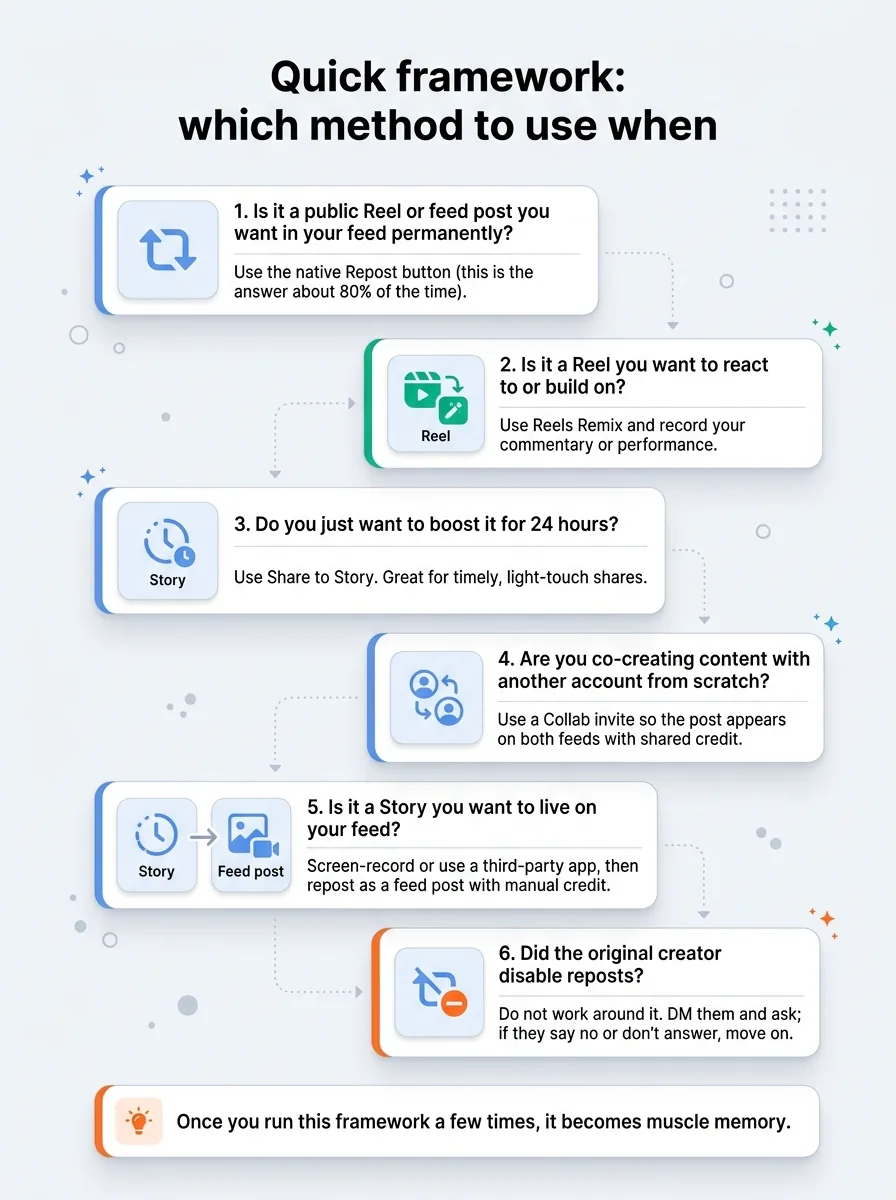
Here’s the quick decision tree you can run in your head every time you’re about to share something.
- Is it a public Reel or feed post you want in your feed permanently?
Use the native Repost button (this is the answer about 80% of the time). - Is it a Reel you want to react to or build on?
Use Reels Remix and record your commentary or performance. - Do you just want to boost it for 24 hours?
Use Share to Story. Great for timely, light-touch shares. - Are you co-creating content with another account from scratch?
Use a Collab invite so the post appears on both feeds with shared credit. - Is it a Story you want to live on your feed?
Screen-record or use a third-party app, then repost as a feed post with manual credit. - Did the original creator disable reposts?
Do not work around it. DM them and ask; if they say no or don’t answer, move on.
Once you run this framework a few times, it becomes muscle memory.
Why most people still get bad results from reposting
Even with all these tools, most creators aren’t seeing great results from reposts. Not because the methods are wrong, but because the strategy is off.
Mistake 1: Treating reposts as filler
“I don’t have anything to post today, I’ll just repost something.” That mindset is exactly why your reposted content underperforms.
Reposts should be high-signal content that reinforces your positioning. If your niche is email marketing and you’re reposting random mindset Reels, your audience gets confused and the algorithm sees low engagement from the wrong people.
Mistake 2: No added context or commentary
Just hitting Repost without saying anything is like forwarding a link with zero explanation.
Add one or two lines explaining why this matters, who it’s for, or what you agree/disagree with. That small bit of context massively increases saves and shares, because your followers know exactly why it’s on their screen.
Mistake 3: Posting at random times
If you only repost at 11pm when you finally sit down, your best shares will still underperform.
The algorithm heavily weights early engagement. You want your reposts going out when your audience is usually active, not when you remember. Check your insights or use a “best time to post” style tool and stick to a small handful of posting windows.
Mistake 4: Letting curated content drown out your own voice
If people scroll your feed and mostly see other creators’ faces or content, they won’t remember you.
Reposts should support your brand, not replace it. If your last nine posts are all other people’s work, the fix isn’t “better repost apps,” it’s “you need to create again.”
Mistake 5: Sloppy or missing credit on manual reposts
Nothing kills trust faster than being seen as the account that steals content.
On any non-native repost, over-communicate credit: tag in caption, tag on-screen, mention in Stories. Your audience notices, and so do the creators you want relationships with.
The consistency bridge: why posting rhythm matters more than the perfect repost method
Here’s what actually moves the needle: not the exact button you tap, but how consistently you share great content your audience cares about.
Instagram’s algorithm learns from patterns. If you train it that your account drops something good at, say, 6pm most days, it’ll start “testing” your posts a bit more aggressively with your followers at that time. That early engagement window is where your reach is won or lost.
The real issue usually isn’t “which repost method is ideal?” It’s “can you make this easy enough that you’ll actually stick with it for 3–6 months?”
That’s where scheduling bails a lot of creators out. You can batch-pick the Reels and posts you want to Repost, queue your own originals, and line everything up in a calendar instead of panic-posting. A planner like SocialCal lets you see your whole content week — originals, Reels, and cross-posts — in one place so reposting becomes a system, not a last-minute scramble.
Practical checklist: your repost workflow for the next 30 days
Screenshot this and run it weekly.
- Clarify your lane. Write down 2–3 topics you want to be known for. Only repost content that fits those.
- Pick your ratio. Decide on a target mix for the month (e.g., 3 originals + 2 reposts per week).
- Set repost criteria. Only repost content that hits at least two of: super useful, strongly aligns with your POV, or already performing well.
- Choose your method per post. Use the decision tree: Native Repost vs Remix vs Story-share vs Collab vs manual.
- Add context every time. For each repost, write a 1–3 line commentary or hook in your caption or quote box.
- Batch your scheduling. Once a week, schedule your originals and slot in your chosen reposts around them so you’re not posting only curated content on any given day.
- Check performance. Once a week, review which reposts got the best saves, shares, and watch time. Do more of those formats and topics next week.
- Protect your ethics. Double-check repost permissions and credit, especially on anything you’re using around a launch or offer.
If you want to go faster, save caption ideas and hooks in a content library, or let an AI caption writer help when your brain is fried. An Instagram caption generator can give you 5–10 angles in seconds, which is often all you need to keep moving.
Ready to save 15+ hours every week?
Join other creators who've automated their social media with SocialCal.
Get started freeFrequently asked questions about how to repost on Instagram
When did Instagram add the native Repost button?
Instagram launched the native Repost button in August 2025. Before that, users relied on Story shares, Reels Remix, Collabs, and third-party repost apps. As of 2026, the native button is the default method for public Reels and feed posts, with older methods reserved for specific use cases.
Can I repost Instagram Stories to my feed?
There’s no built-in “Repost Story to feed” button. If you want a Story to live on your feed, you’ll need to screen-record it or use a downloader, then upload it as a new Reel or feed post with clear credit in the caption and, ideally, on-screen.
Does Instagram notify the original creator when I use the native Repost button?
Yes. When you use the native Repost button on a public post or Reel, the original creator gets a notification that you reposted their content. That notification links back to your profile and the repost, which is why thoughtful reposts can be a subtle way to get on bigger creators’ radar.
How do I turn OFF other accounts reposting my content?
Go to Settings → Privacy → Reposts and turn reposting off for your account. You can also disable reposting per post via the three-dot menu on that post. Remember: if you turn reposts off globally, you also lose the ability to natively repost other accounts’ content from that profile.
Do reposted Reels get less reach than originals?
Native reposted Reels don’t automatically get less reach, but Instagram still prioritizes content that drives strong engagement. If your reposts feel off-brand or low-effort, they’ll underperform. Used well — especially with context, good timing, and a relevant audience — they can perform close to, or sometimes better than, your own Reels because they’ve already proven they resonate.
Where do my reposts appear on my profile?
Native reposts appear in your followers’ feeds and in a dedicated Reposts tab on your profile, marked by the two-arrows icon. They don’t clutter your main grid. Manual reposts (uploads via apps or screen recordings) behave like normal posts and live on your main grid.
Can I repost a private account’s post?
No. The native Repost button only works on public posts and Reels. You also shouldn’t screenshot or re-upload content from private accounts; that breaks the expectation of privacy and can trigger complaints or takedowns. If you really need to share something from a private account, ask them directly and get explicit permission first.
The principle: native first, edge methods when you need them
As of 2026, the answer to “how to repost on Instagram” is simple most of the time: use the native Repost button for public feed posts and Reels, keep your originals strong, and let the Reposts tab handle the curation side. Remix, Story-share, Collabs, and manual reposts are still useful — they just live in the 20% of cases where native can’t do what you need.
Growth on Instagram isn’t about having a perfect repost setup. It’s about consistently showing up with a mix of original work and sharp curation that trains both your audience and the algorithm to expect quality from you. If you build a simple system — batching, scheduling, and reusing your best ideas across platforms with a planner like SocialCal in the background — reposting stops being chaotic and starts becoming a real growth lever.